
Other Integrations
ServiceNow
ServiceNow
Deploy Atomicwork's AI Workforce on top of your ServiceNow instance — AI coworkers that deflect, automate, and resolve requests from level 1 through level 3.
At a glance
What ServiceNow is An IT and employee service management platform where your service teams manage tickets, catalog, and knowledge. What the integration does Connects Atomicwork to your ServiceNow instance and keeps tickets in sync, so your AI coworkers and human agents can work the same tickets — deflecting level 1, automating level 2, and accelerating level 3. Modules supported ITSM and HRSD. ServiceNow versions All releases after Washington 2024. Authentication OAuth 2.0. The integration connects through a dedicated ServiceNow user you create for the bridge, granted the required roles. Optionally, to have an AI coworker act under its own identity, you create another ServiceNow user for it with the permissions its work needs. Configured in Atomicwork → Settings > Enterprise integrations > App store > ServiceNow Access required Org admin on Atomicwork; a ServiceNow admin to create the users and grant their roles.
Overview
The ServiceNow integration connects Atomicwork to your existing ServiceNow instance so your AI Workforce, Atomicwork's AI coworkers, can work directly on ServiceNow tickets. Employees get help where they already work, in Slack, Microsoft Teams, and the portal, and AI coworkers deflect, automate, and resolve requests across level 1, level 2, and level 3, taking real work off your agents' plates.
In practice, an employee raises a question or request in Slack, Teams, or the portal, and Atom (the Universal AI Coworker) handles the level 1 ones on the spot, whether that means answering from your knowledge, resetting a password, or checking a leave balance.
When a request needs more, Atomicwork creates a ticket, either an incident, a service request, or a case, and mirrors it in ServiceNow. The right specialized coworker takes it from there, based on what the request needs: an IGA coworker for access that requires approval and provisioning, a Cloud Ops coworker for a cloud incident. Humans stay in the loop throughout, working in ServiceNow, with comments, fields, attachments, and status changes flowing two-way the whole time.
Because your teams keep operating in ServiceNow, your existing workflows, assignment rules, SLA policies, etc. stay intact.
What syncs, and how
For the exact tables and filters Atomicwork reads, see Appendix: what Atomicwork reads from ServiceNow.
Shared across ITSM and HRSD (one-way, ServiceNow → Atomicwork)
- Users — all active users in ServiceNow.
- Knowledge articles — synced through the knowledge connector (Published articles only).
- CMDB assets — configuration and asset records from ServiceNow's CMDB.
Catalog items (one-way, ServiceNow → Atomicwork)
Catalog items are module-specific:
- ITSM — requestable services and their form variables.
- HRSD — the HR service catalog.
To set up an ITSM catalog item in ServiceNow so it syncs, see Appendix: create service catalog items in ServiceNow.
Agents and agent groups (one-way, ServiceNow → Atomicwork)
- ITSM — users in ServiceNow groups with the
itilrole sync as Workspace Agents, and users in groups with theitil_adminrole sync as Workspace Admins. - HRSD — users with the
sn_hr_core.case_writerrole sync as Workspace Agents, and users with thesn_hr_core.adminrole sync as Workspace Admins.
Users who aren't in a group with one of these roles don't sync as agents. To set up ITSM users and groups in ServiceNow, see Appendix: set up users and agent groups in ServiceNow.
Note: Everything above syncs one-way. Changes made to these objects in Atomicwork don't push back to ServiceNow.
Tickets (two-way, near real time)
- ITSM — incidents and service request items sync in both directions, including comments (public and internal work notes), field updates, and attachments.
- HRSD — a service request raised in Atomicwork is created as an HR case in ServiceNow, and comments (public and internal), field updates, and attachments sync in both directions.
Only fields that originate in ServiceNow sync back — see Field sync scope in Behaviors and limits.
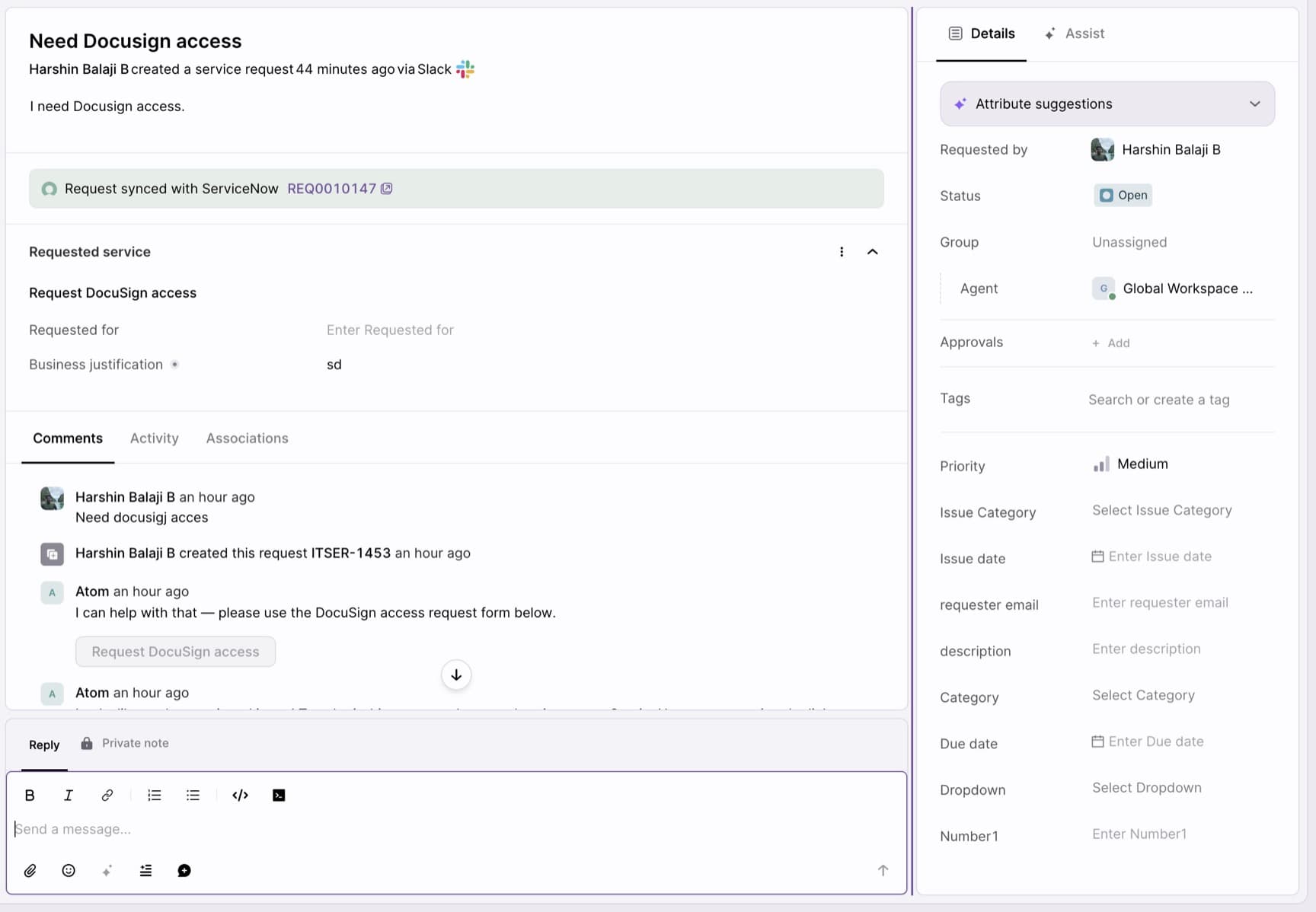
A synced ticket shows a banner in Atomicwork linking to the corresponding ServiceNow record:
Before you begin
Important: When you link an Atomicwork workspace to a ServiceNow module, that workspace's agents, agent groups, and catalogs are replaced by the versions synced from ServiceNow. We recommend linking to a new Atomicwork workspace so you don't overwrite an existing one.
You need a ServiceNow admin or security_admin to create the integration accounts, grant their roles, and create the OAuth endpoint, and an Org admin on Atomicwork to connect, link, and configure the integration (including adding knowledge and reviewing catalogs).
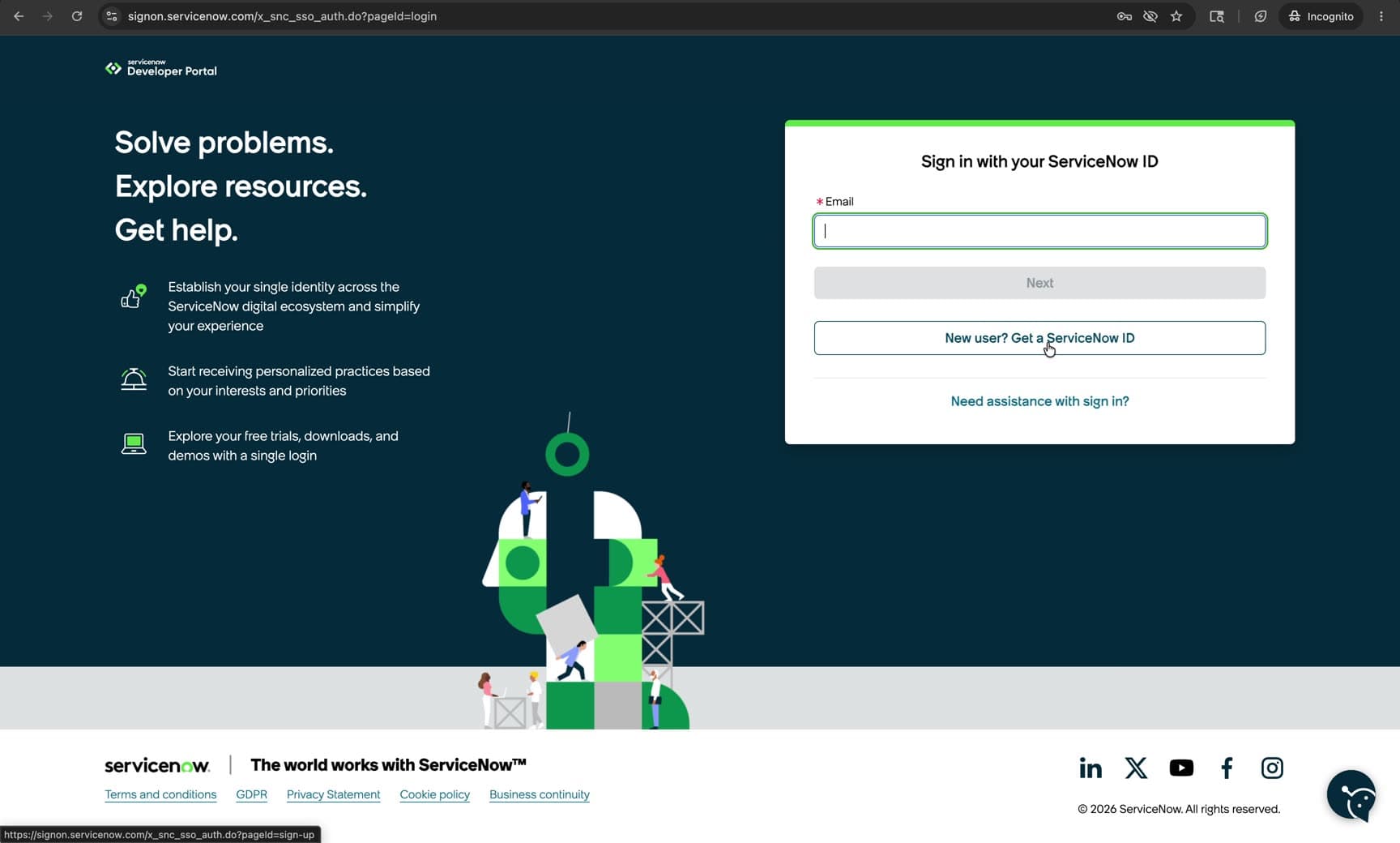
Note: Don't have a ServiceNow instance and just want to try this out? Create a free one at the ServiceNow developer portal. Sign in, or select New user? Get a ServiceNow ID to create an account, and you'll land on a developer instance you can use for the steps below.
Connect ServiceNow
Connecting ServiceNow to Atomicwork is the main part of setup. Apart from that, a user connection lets each user and agent act as themselves, and an optional coworker connection lets each AI coworker act as itself. Both are covered later in this setup.
Setup at a glance:
- Create the bridge account and grant its roles.
- Create the OAuth application.
- Connect the bridge account in Atomicwork.
- Link ServiceNow modules to your workspaces.
- Set up user connections.
- Connect coworker identities (optional).
Step 1: Create the bridge account and grant its roles
Create a ServiceNow user for the integration (the bridge account) with the roles below. You'll connect it to Atomicwork in Step 3.
- snc_platform_rest_api_access — lets the account use the REST API. Nothing works without it.
- itil — read and update the incidents, requests, and request items Atomicwork mirrors.
- record_hierarchy_reader — read parent-child record hierarchies (such as a service request and its request items).
- approval_admin — action approvals from Atomicwork (see Approvals).
- cmdb_read — read configuration and asset records from the CMDB.
- sn_hr_core.case_writer and sn_hr_core.admin — read and update HR cases (HRSD).
- x_atomicwork.bridge — a custom role you create in ServiceNow. Give it the ACLs listed in Appendix: x_atomicwork.bridge role ACLs.
Step 2: Create the OAuth application
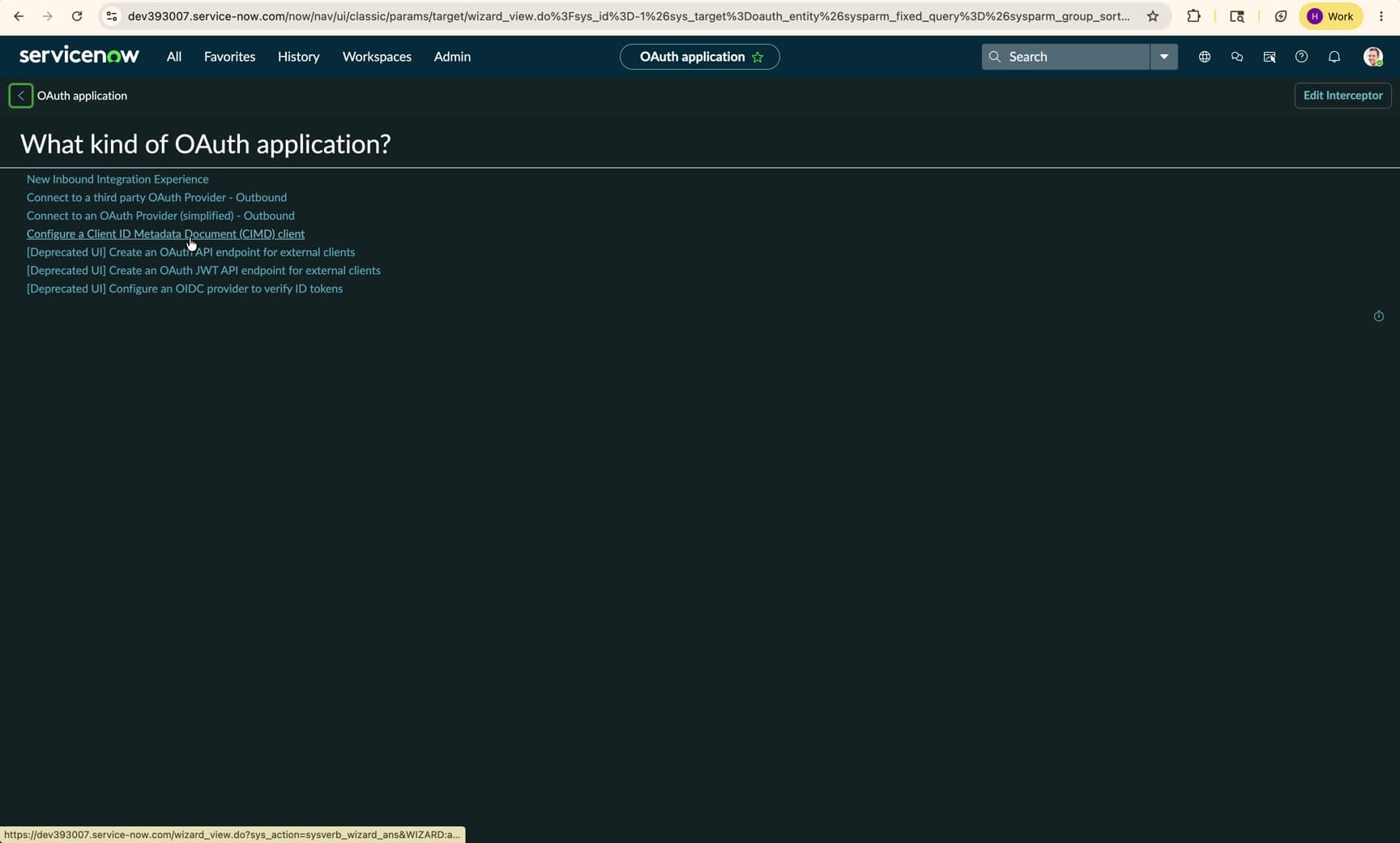
One OAuth application serves every account. In ServiceNow, click All in the top navigation, type Application Registry, and open it. Click New, then select [Deprecated UI] Create an OAuth API endpoint for external clients. (Only the UI is deprecated; the functionality is identical.)
![The OAuth application type list with "[Deprecated UI] Create an OAuth API endpoint for external clients" highlighted.](/_next/image?url=https%3A%2F%2Fd1f1ngd1uevx2j.cloudfront.net%2F422f94bd-b6b3-44c0-9aa5-8011ceb28fe2%2Fimages%2Fdeb9c83017d14a9cab0c3c92b8c88717174c90f0e4bf565f2051c403a23f92b6.jpg&w=3840&q=75)
Fill out the record:
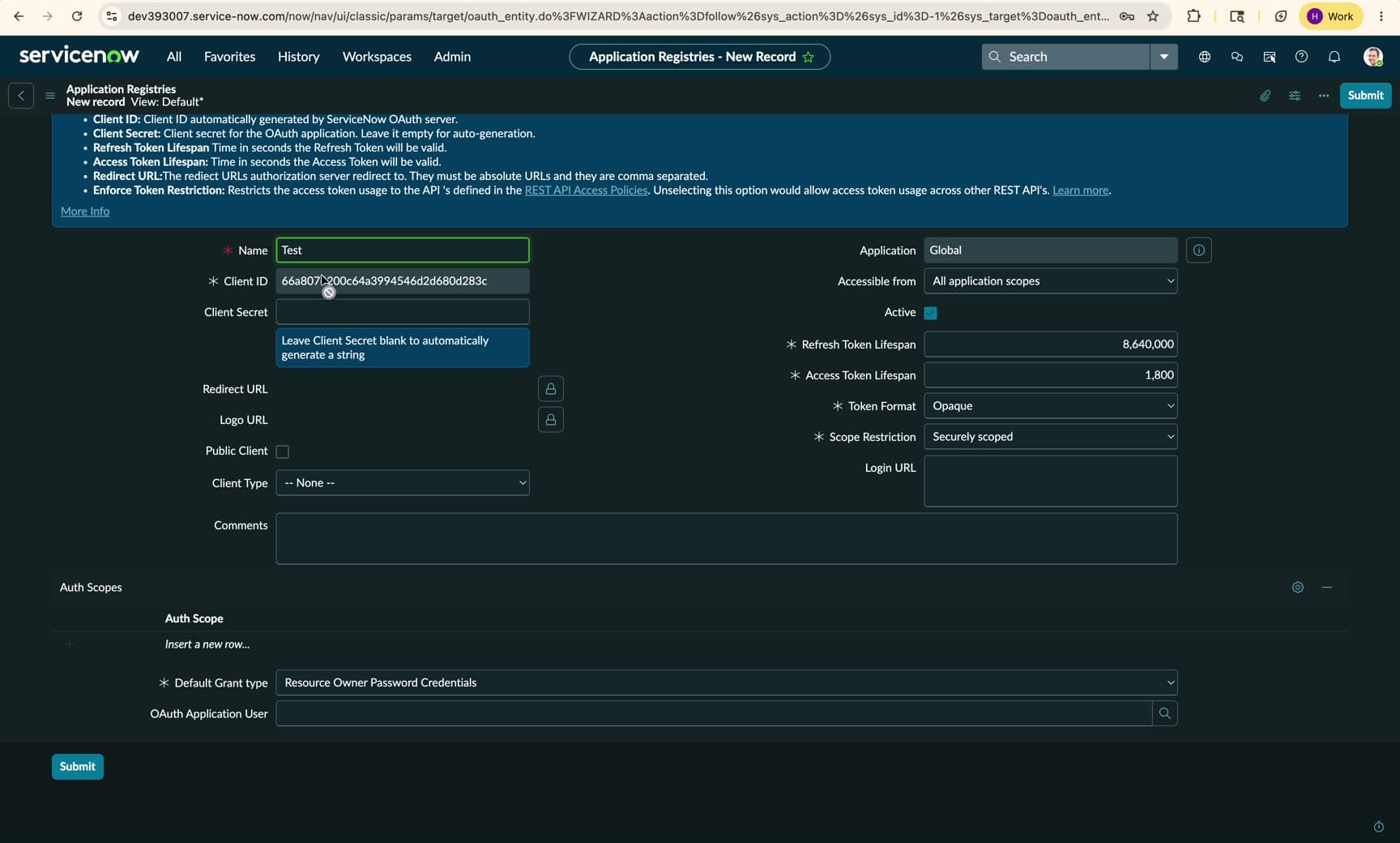
| Field | Value |
|---|---|
| Name | Any name (e.g., Atomicwork Bridge) |
| Client ID | Auto-generated — copy this |
| Client Secret | Leave blank — auto-generated on save |
| Redirect URL | Paste both URLs for your region, comma-separated. US: https://esd.atomicwork.com/api/external-oauth/public/install, https://esd.atomicwork.com/api/user/external-oauth/public/install. EU: https://esd.podeuw.atomicwork.com/api/external-oauth/public/install, https://esd.podeuw.atomicwork.com/api/user/external-oauth/public/install. |
| Default Grant type | Authorization Code (change it from the default) |
| Scope Restriction | Broadly scoped |
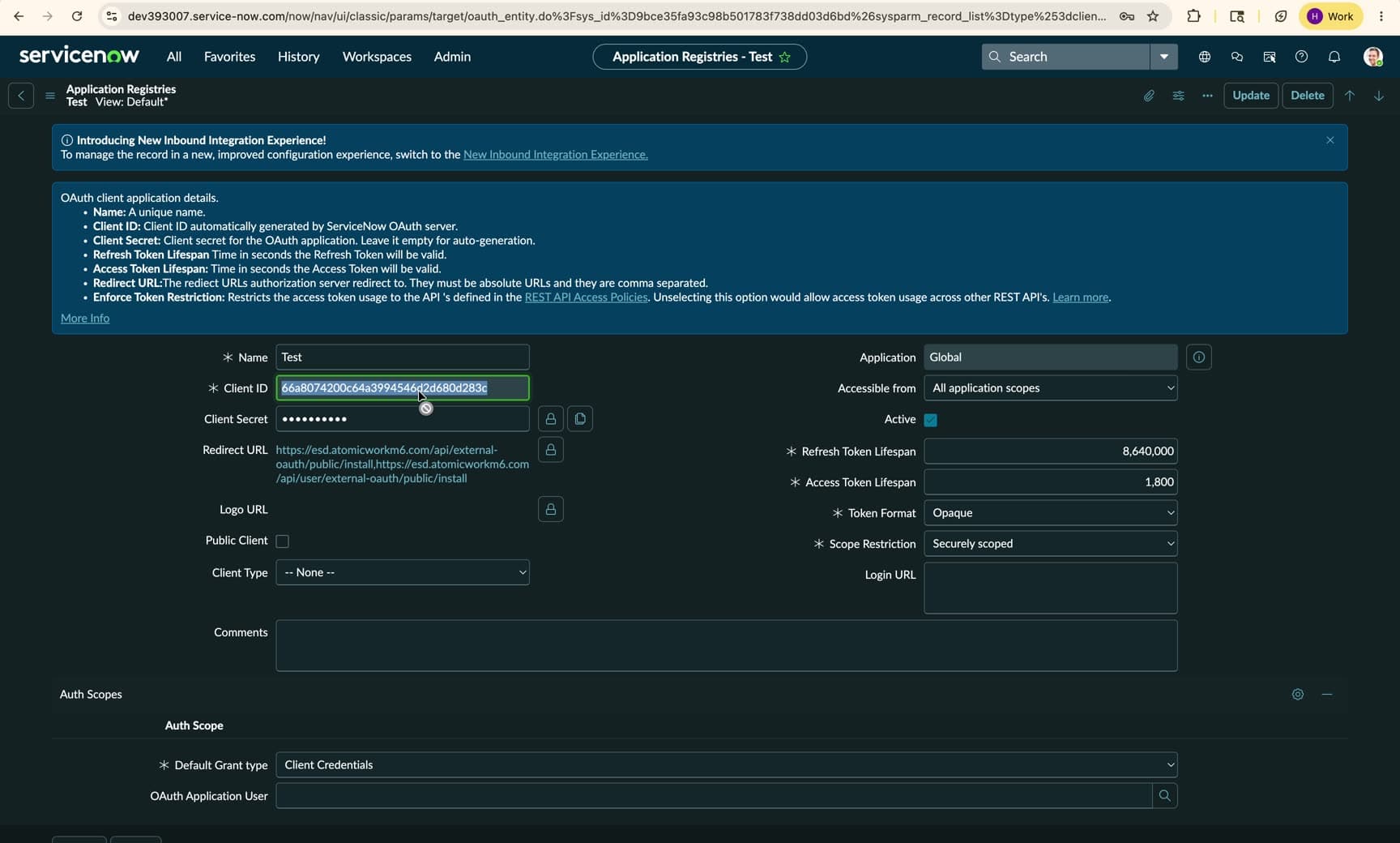
Click Submit. Re-open the record, copy the Client ID and Client Secret (click the padlock to reveal the secret), and send them to Atomicwork over a secure channel.
Step 3: Connect in Atomicwork
-
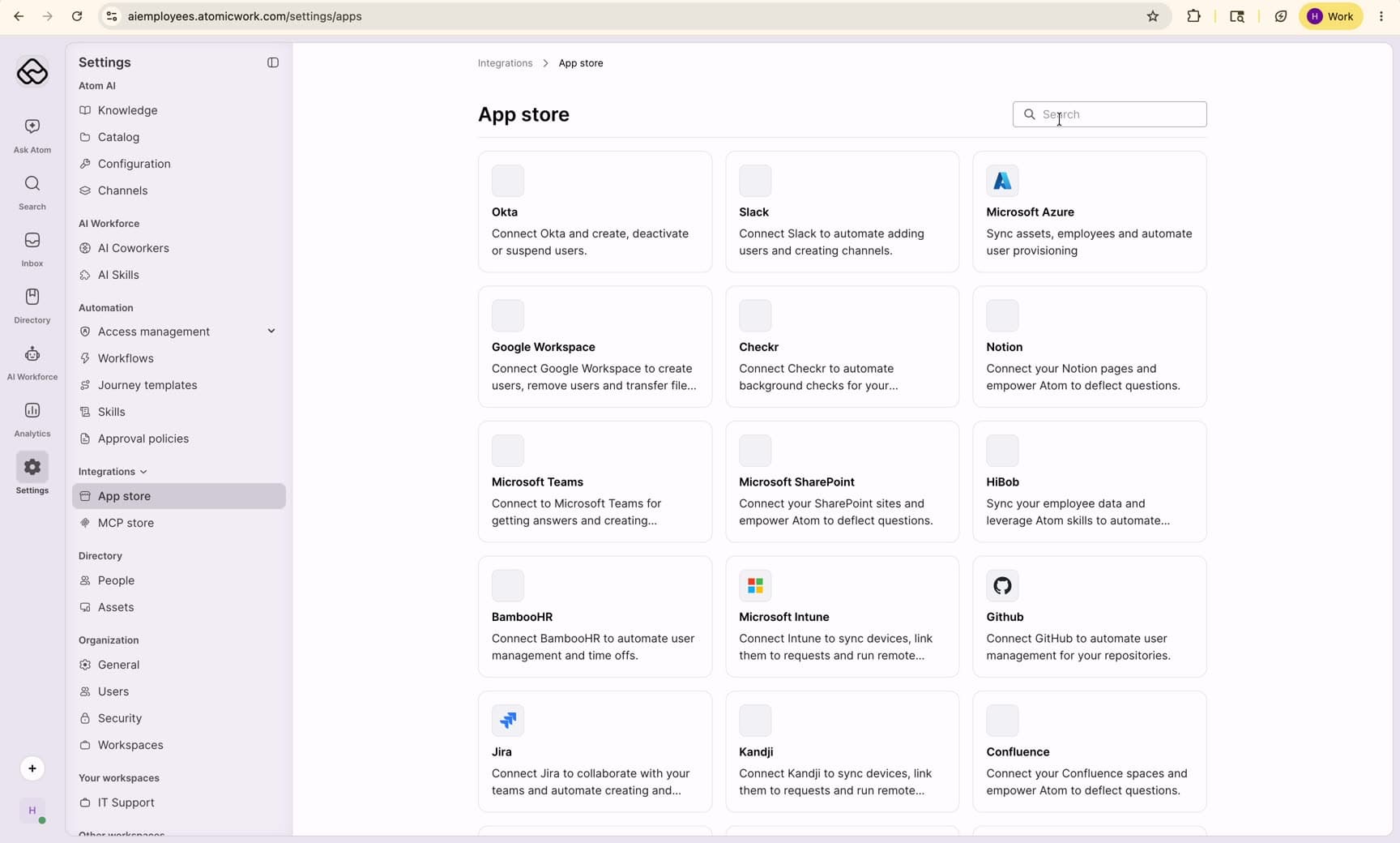
In Atomicwork, go to Settings > Enterprise integrations > App store > ServiceNow.
-
Start the connection, enter your ServiceNow instance URL (for example,
https://dev3XXXXX.service-now.com), client ID, and client secret. When ServiceNow asks you to sign in, sign in as the bridge account.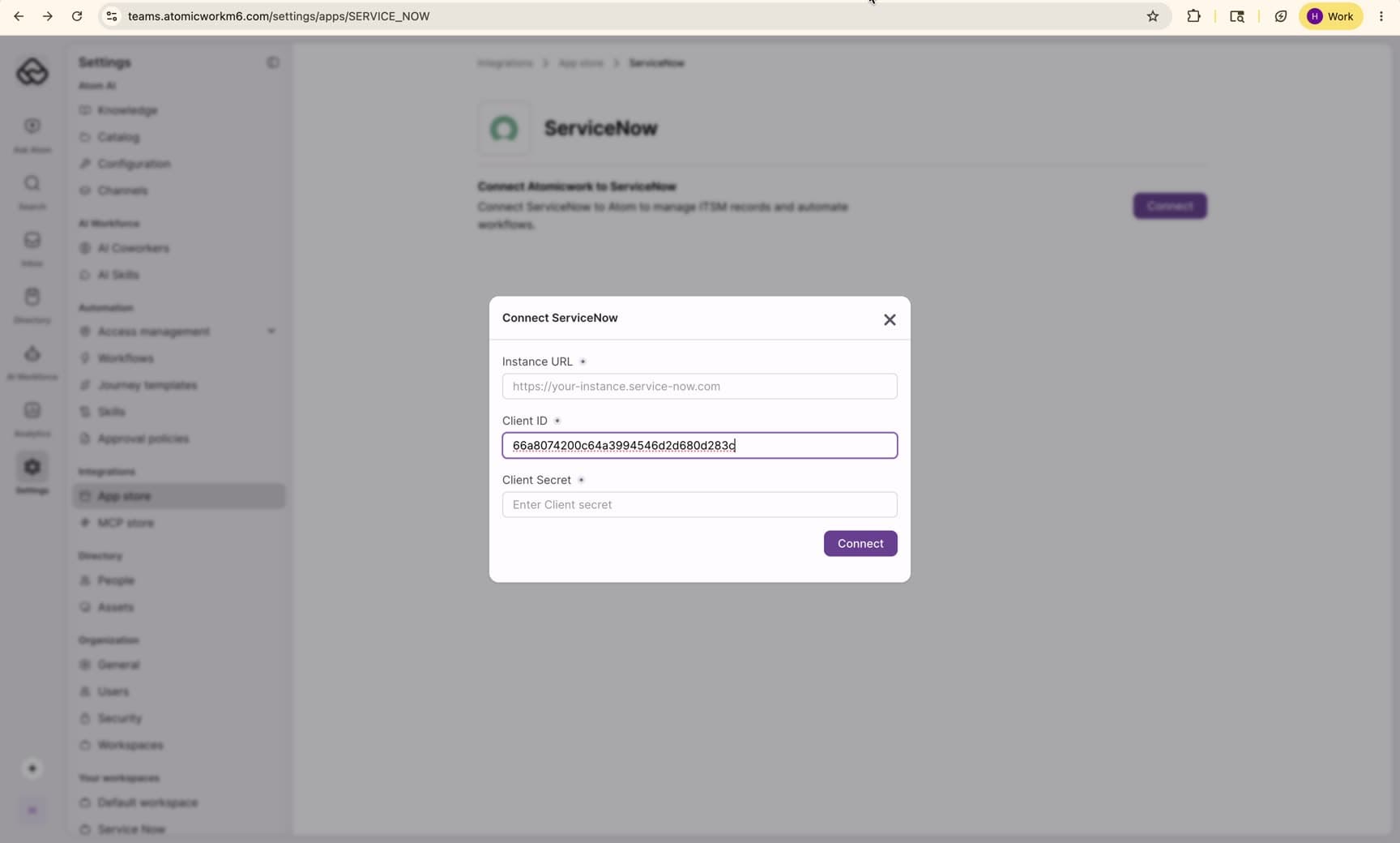
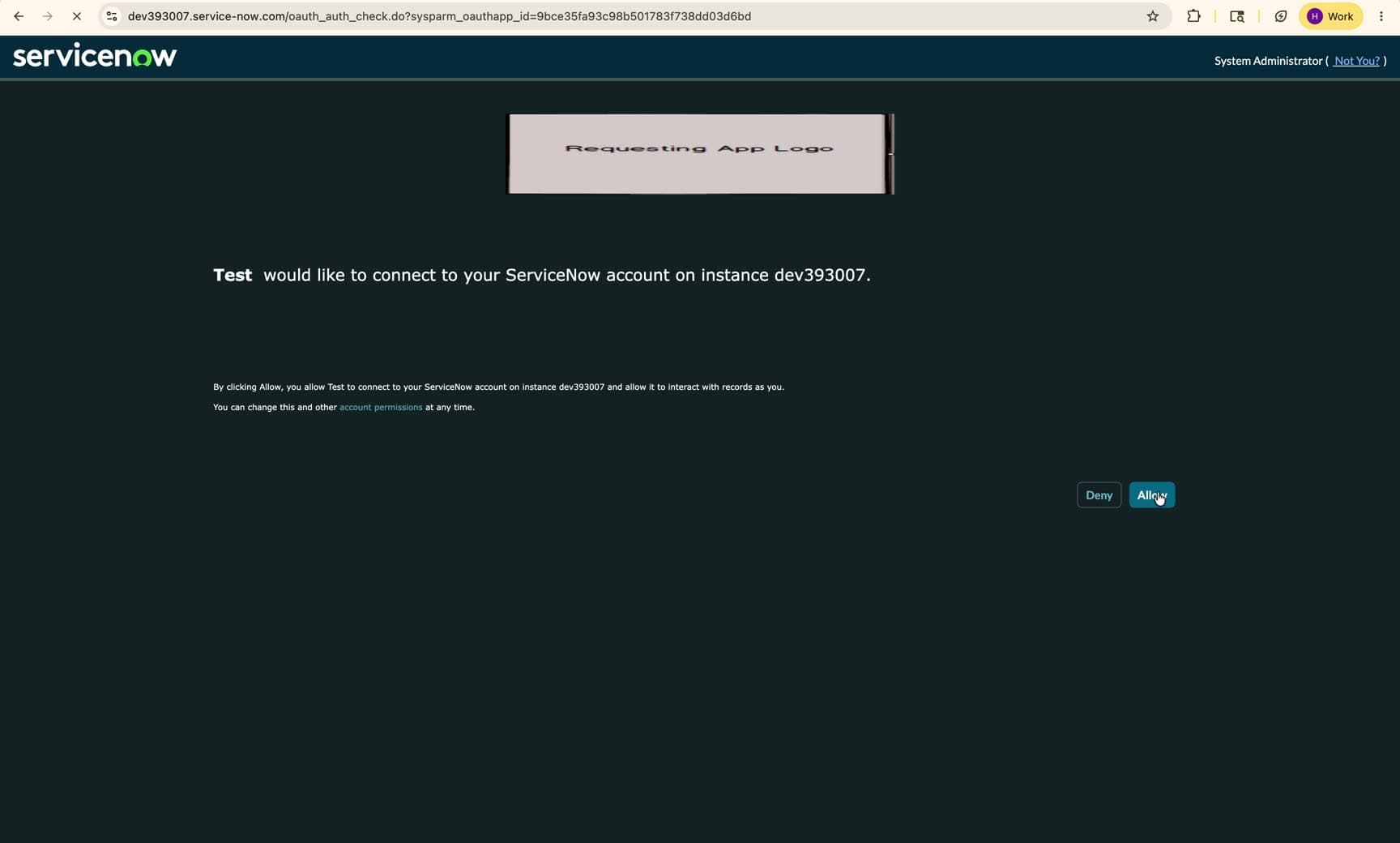
Use a private or incognito window. If you're already signed into ServiceNow, it authorizes as you without asking, and the setup will look like it worked. Sign in explicitly as the bridge account, then confirm the connected account shown in Atomicwork. If it shows your name, disconnect and redo it.
Step 4: Link ServiceNow applications to Atomicwork workspaces
Map your Atomicwork workspaces to the corresponding ServiceNow modules. The integration supports a one-to-one mapping between an Atomicwork workspace and a ServiceNow module (such as ITSM).
Important: Linking replaces that workspace's agents, agent groups, and catalogs with the versions synced from ServiceNow. We recommend linking to a new Atomicwork workspace so you don't overwrite an existing one.
-
In Atomicwork, go to Settings > Enterprise integrations > App store > ServiceNow. The page confirms who connected the instance and when.
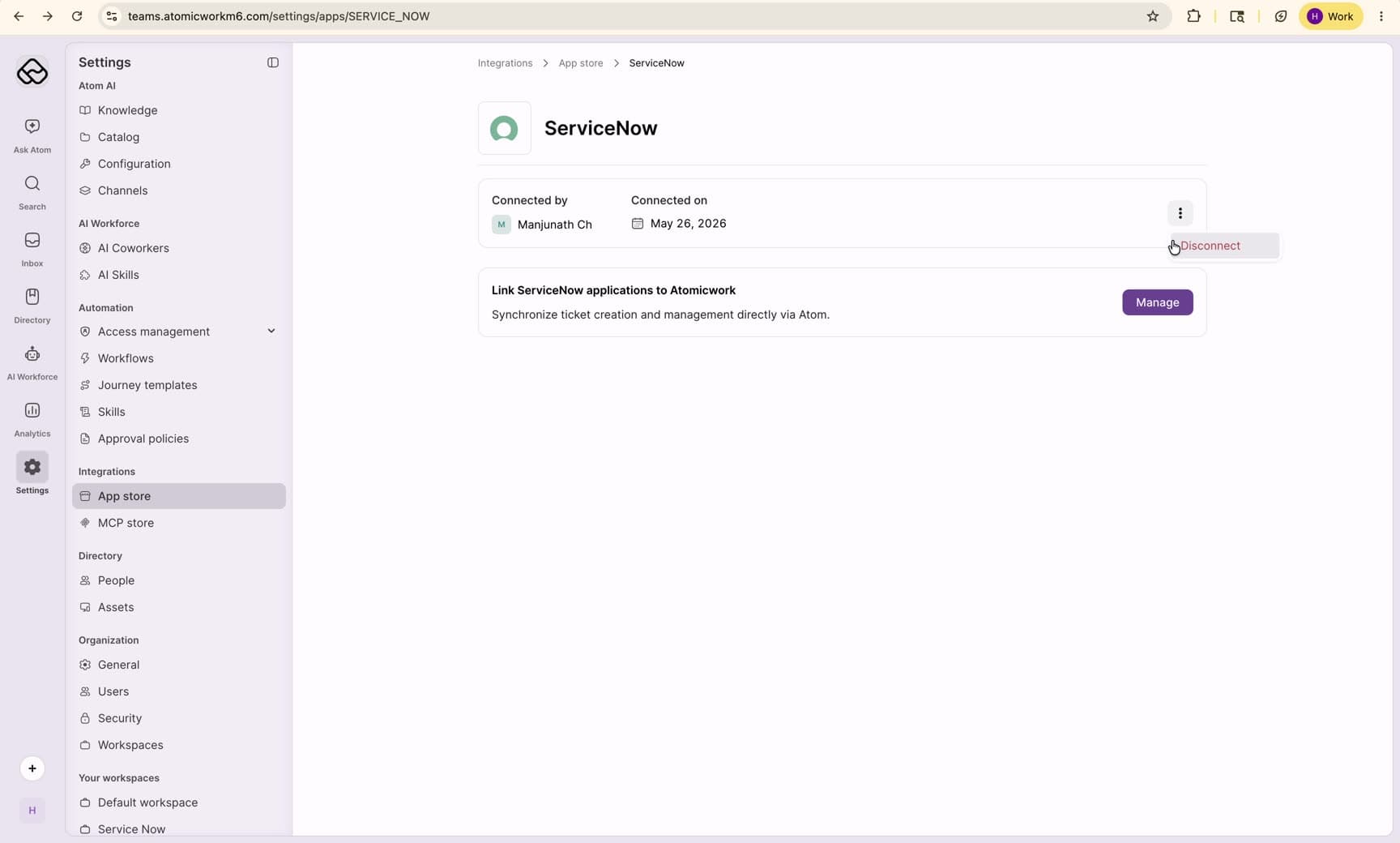
-
Click Manage on the Link ServiceNow applications to Atomicwork card.
-
Click Link application.
-
Select the Atomicwork workspace (for example, "IT Support") and the corresponding ServiceNow module (such as "ITSM").
-
Click Save. The linked pair now appears in your active connections list.
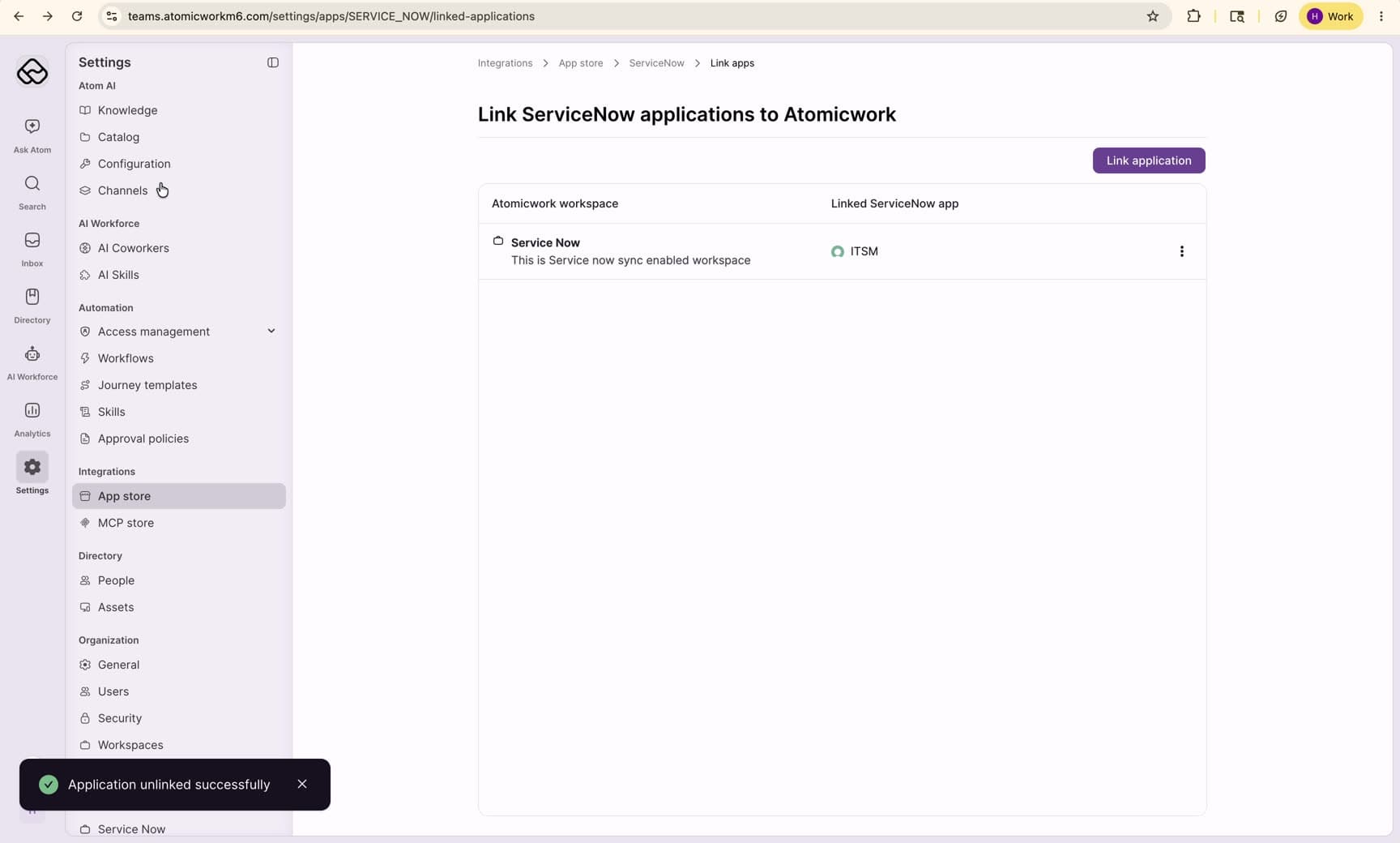
Step 5: User connections
Separate from the integration accounts, each end user and agent connects their own ServiceNow account so their own actions (such as posting comments under their own name) are attributed to them. Their ServiceNow account needs enough access to comment and add attachments on those tickets. And for actions to be attributed correctly across channels, the same person must exist in both the channel they use (Slack or Microsoft Teams) and ServiceNow, so Atomicwork can match them.
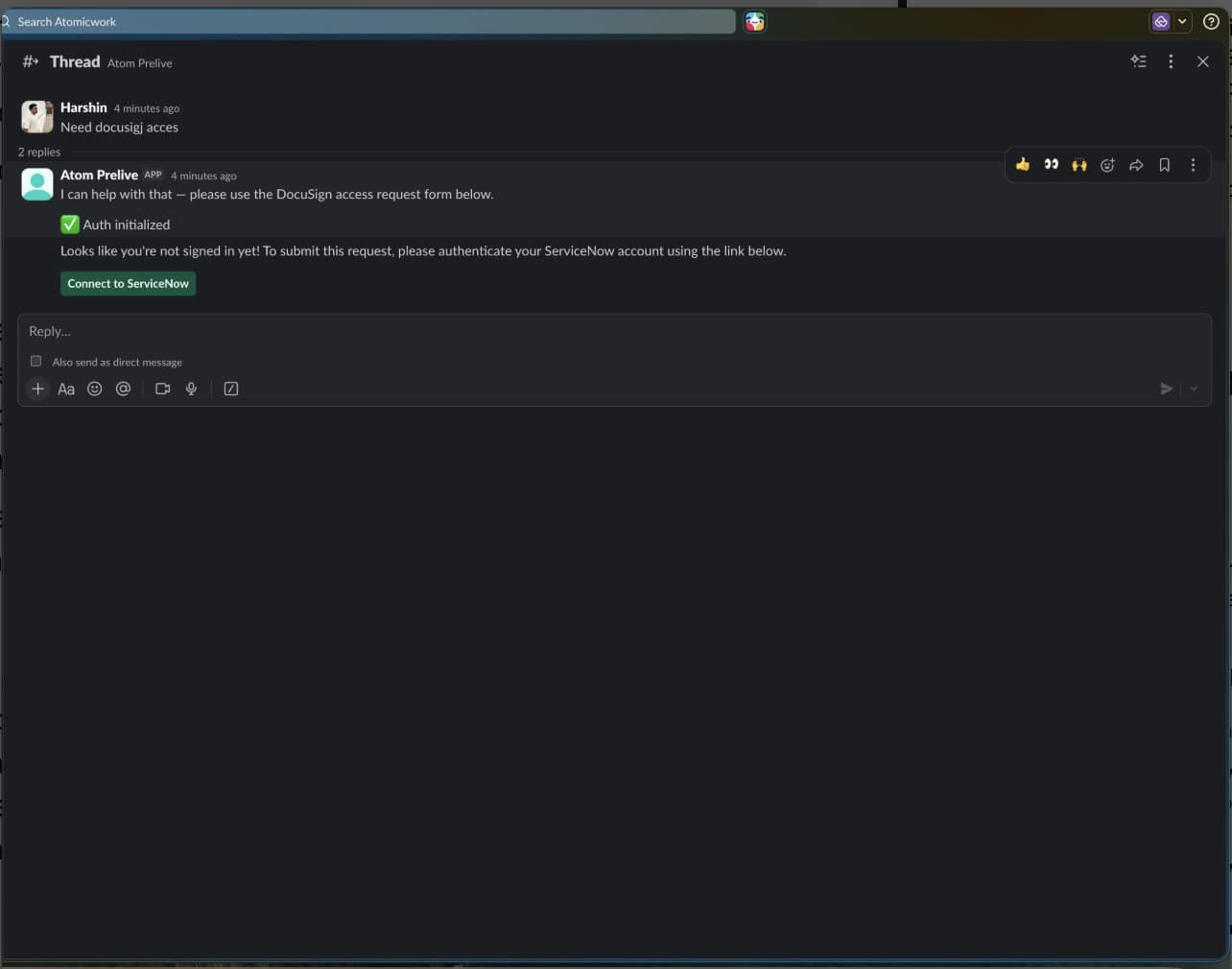
End users can connect either during a request (Atom shows a Connect to ServiceNow button when they raise a request without an active connection) or from Settings > My account > Connections in the portal.
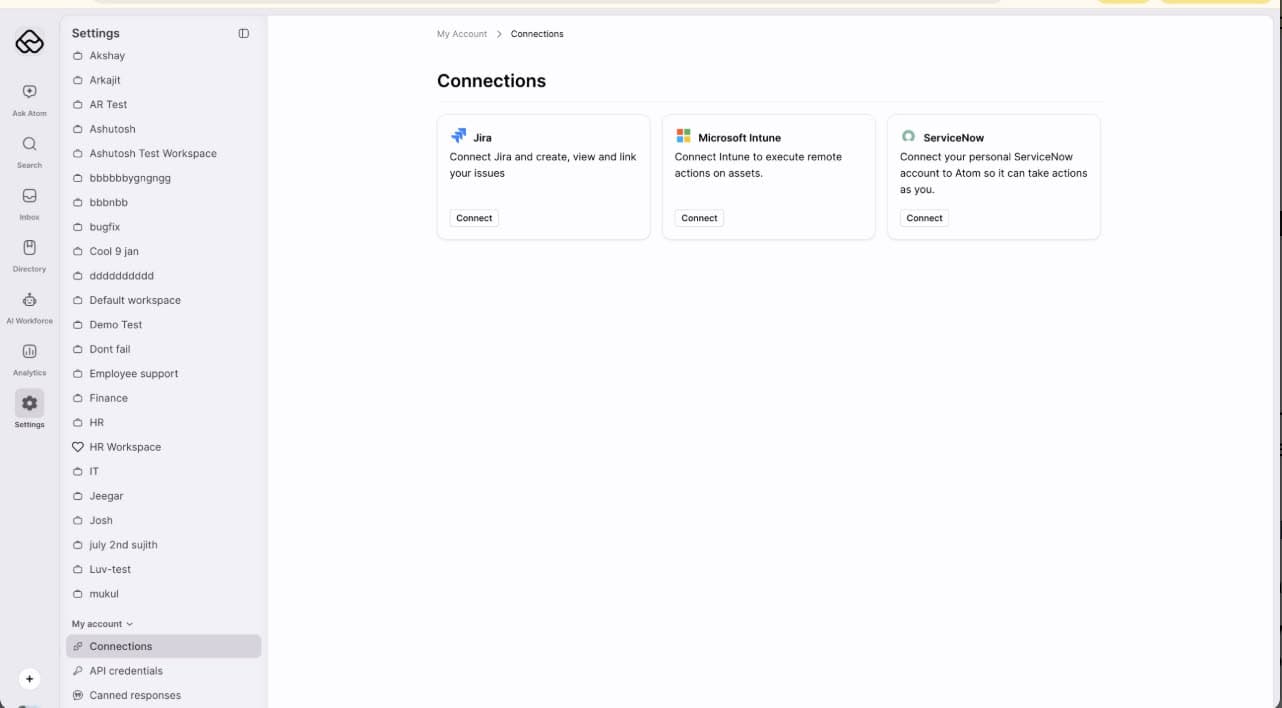
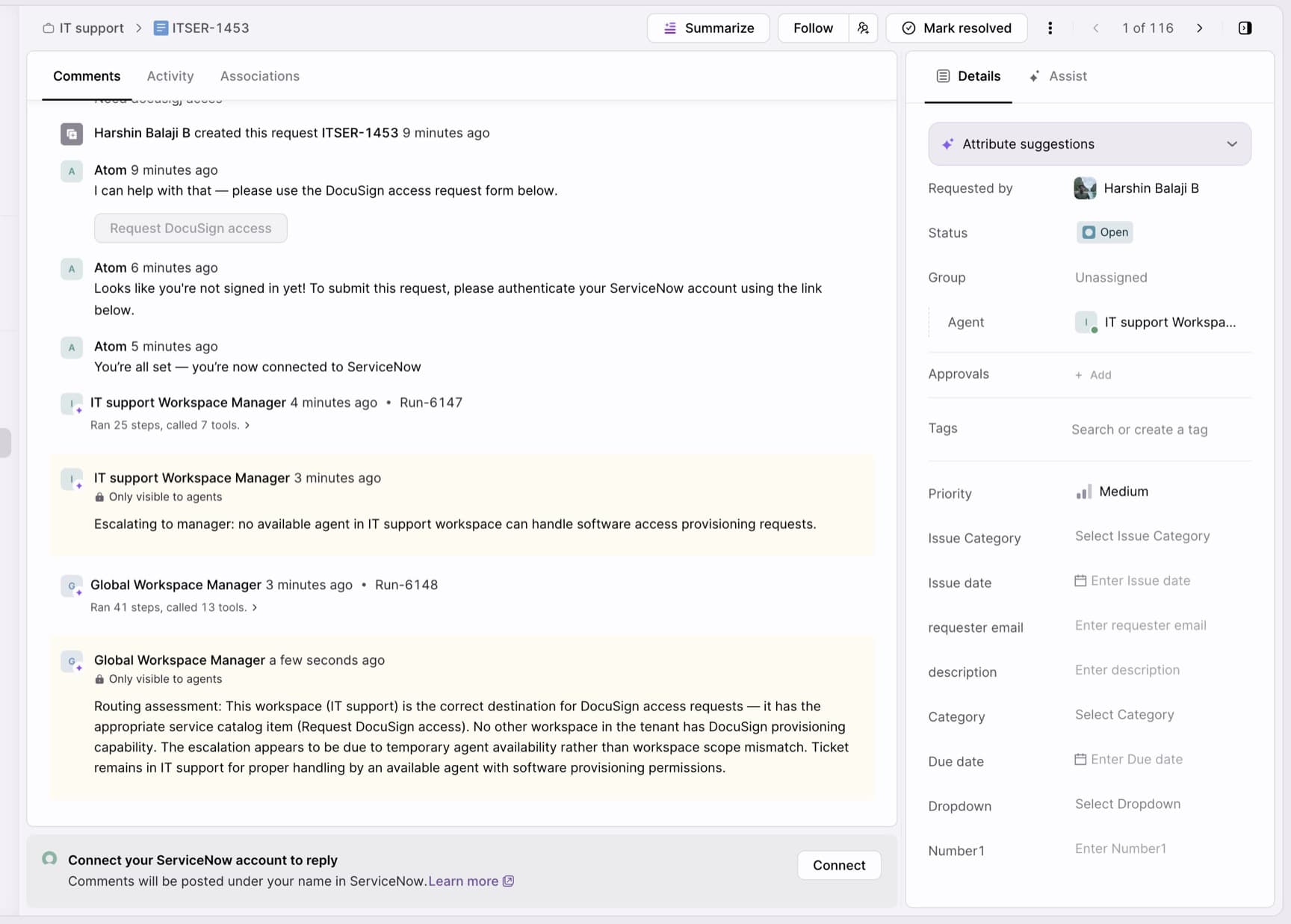
Agents can connect from Settings > My account > Connections, or from a ticket — if an agent tries to comment without connecting their own account, the comment box stays locked and shows a Connect banner; connecting unlocks it and attributes replies to their ServiceNow user.
Step 6: Connect coworker identities (optional)
By default, an AI coworker's comments and actions in ServiceNow post under the bridge account. To have a coworker act under its own name instead, create a ServiceNow account for it, grant it the roles below, and connect it.
Grant the coworker account the itil role (or more) so it can comment on, update, reassign, and resolve tickets.
Note: If a coworker account lacks permission for a specific action, the bridge account completes it instead (attributed to the bridge account). Don't give a coworker account the
x_atomicwork.bridgerole.
Then connect it: on the ServiceNow page, open Connect AI coworker identities (click Manage), click Connect next to the coworker, and sign in as that coworker's account. Repeat for each coworker; the ServiceNow user and Status columns confirm which account each one is connected as.
Use a private or incognito window, so each coworker connects as its own account and not as you. Confirm the account shown for each coworker after connecting.
After you connect
With the connection and workspaces in place, set up these configuration areas. Knowledge sync is typical for every rollout; notifications, assignment, and approvals depend on how you run your service desk.
Sync knowledge
Sync your ServiceNow Knowledge Base articles so Atom can answer employee questions.
- In Atomicwork, go to Settings > Enterprise AI > Knowledge library.
- Click Add knowledge, then under Sync from apps select ServiceNow (it must show as Connected).
- In Add ServiceNow content, select the knowledge bases (or specific categories and articles) to sync.
- Under Segment settings, choose who can see the content. ServiceNow user criteria is synced from ServiceNow and applied here as Atomicwork user segments, so the same audiences carry over.
- Click Publish to sync.
Auto-fulfilled requests (IGA)
For IGA use cases, Atomicwork raises auto-fulfilled requests through its own catalog item. Because a linked workspace pulls its catalog from ServiceNow, that item must also exist in ServiceNow for the request to be created there.
Important: In ServiceNow, create a service catalog item named exactly
Atomicwork Auto-Fulfilled Request, with a short description and a description. Use this name verbatim — Atomicwork matches on it, so changing even one word breaks IGA request creation.
Notifications
- Slack notifications come from Atomicwork and link to the corresponding ServiceNow ticket.
- Email notifications come from ServiceNow. Your existing ServiceNow email notifications stay as-is; no changes needed.
Agent assignment
AI coworkers work a ticket before a human does, which changes how assignment should behave. Before you test or go live, changes are needed in two places:
- Coworker instructions. The coworker handles assignment after it finishes triaging, so its instructions need to be set up to assign the ticket to the right agent at that point.
- ServiceNow-side assignment. Your ITSM or HRSD assignment logic needs to be updated so it kicks in after the coworker has worked the ticket, rather than assigning a human owner the moment a ticket or case is created.
The exact changes vary by module and by how your service desk is configured. Our team will work closely with you on this part of the setup.
If your workspace doesn't use AI Coworkers, assignment works as it does today: through Atomicwork's assignment workflows or your existing ServiceNow assignment rules, with the status reflected back in Atomicwork.
Approvals
When an approval is triggered in ServiceNow, it surfaces in Atomicwork so the approver can act on it in Slack or the portal, and their decision syncs back to ServiceNow. Actioning approvals from Atomicwork requires the approval_admin role on the bridge account (see Step 1).
Behaviors and limits
Tickets and fields
- Object mapping. Incidents map 1:1 to Atomicwork tickets. Each ServiceNow Request Item maps 1:1 to a ticket — the parent Service Request hierarchy is stored in the backend but not shown in the UI.
- Field sync scope. Two-way sync covers fields that come from ServiceNow: the variables on the synced catalog item and the ticket's native fields. Two things don't push back to ServiceNow: fields you added in Atomicwork (they aren't on the ServiceNow record), and catalog variables whose type was changed on import (see Catalog variables below).
- Reference fields aren't synced. Reference-type fields on a ticket aren't kept in sync between Atomicwork and ServiceNow.
- Incidents are created as generic intake records (they don't use a catalog structure in ServiceNow).
Catalog and knowledge
- Catalog hierarchy. ServiceNow's three levels (Catalog → Category → Subcategory) collapse to two levels (Category → Service catalogs) in Atomicwork. Subcategory data is preserved in the backend but not displayed.
- Catalog variables. Natively supported variable types import as-is and stay editable. Unsupported types, such as reference fields, convert to plain-text fields, and a converted variable stops syncing back. Dynamic form behavior (UI policies, client scripts, scripted reference qualifiers, catalog client scripts) is dropped on import.
- Unsynced form behavior can fail ticket creation. Because that dynamic form behavior is dropped, a ticket can be rejected when Atomicwork creates it in ServiceNow — for example, if a field is made mandatory by a script or UI policy that didn't carry over, ServiceNow rejects the create.
- Knowledge. Only Published articles are imported; Draft and Retired are skipped. Articles past their valid-to (retirement) date are automatically soft-deleted in Atomicwork.
Access and identity
- Access control. ServiceNow user criteria on knowledge and catalog items is translated into Atomicwork user segments on import, so the same audiences apply. ServiceNow access control lists (ACLs) — the table-, record-, and field-level rules that govern who can read or edit data inside ServiceNow — are not carried over.
- Coworker permission fallback. If a coworker account lacks access for an action, the bridge account completes it instead, attributed to the bridge account.
Sync direction and failures
- One-way objects don't push back. Changes to users, agents, agent groups, or catalog items in Atomicwork don't sync to ServiceNow.
- Sync failures are surfaced directly on the ticket in Atomicwork, in the activity logs.
Unsupported features
ServiceNow is highly configurable across many layers: catalog visibility and behavior, form logic (UI policies and client scripts), business rules and flows, access control (ACLs), SLAs, and assignment and notification rules. Atomicwork doesn't replicate all of that as-is. The table below lists the specific constructs that aren't covered; if your workflows rely on them, continue to manage them in ServiceNow.
| ServiceNow construct | What it is | Behavior with the integration |
|---|---|---|
| Non-ITSM/HRSD modules (Finance, CSM, and others) | Modules outside ITSM and HRSD, with their own record types. | Not covered. Continue to manage these in ServiceNow. |
| HRSD structures (Centers of Excellence, HR templates, HR fulfillment, bulk parent cases) | HRSD constructs beyond basic case sync, including COE-based case security. | Not supported today. COE is planned for HR. |
| Custom agent roles (ITSM) | ITSM roles beyond itil and itil_admin. | Only itil and itil_admin map to agents; users with other roles aren't synced as agents. |
| Catalog structure (subcategories, order guides, incident catalogs and record producers, multi-language content) | Catalog features beyond items and their variables. | Not synced. Catalog items come across as standalone requests in the source language, incidents are created as generic intake records, and subcategory data is kept in the backend but not shown. |
| Parent and task records (service request parents, tasks) | Records that group or fulfill request items. | Each request item maps 1:1 to a ticket. Parent service requests are kept in the backend but not shown; tasks aren't synced. |
| Problems and changes | ServiceNow problem and change records, and their catalog forms. | Not synced. Neither the records nor their catalogs come into Atomicwork. |
| Automation and form logic (Flow Designer flows, workflows, UI policies, client scripts) | Server-side automation and dynamic form behavior. | Not mirrored. Automation keeps running in ServiceNow, and form logic isn't preserved. |
| Approval workflows | ServiceNow's approval engine. | The engine keeps running in ServiceNow; the approvals it generates surface in Atomicwork for action (see Approvals). |
Troubleshooting
| What you see | Cause | Fix |
|---|---|---|
| Every request returns 403 | The bridge account is missing snc_platform_rest_api_access. | Grant it in Step 1. |
| Catalog and knowledge sync, but no ticket updates arrive | The bridge account is missing the itil role. | Confirm its roles in Step 1. |
| Catalog items or articles are visible to everyone | Visibility-rule tables read as empty because access is denied. | Confirm the x_atomicwork.bridge role is granted to the bridge account. |
| A coworker's comments are attributed to the bridge account | That coworker's account lacks access to the ticket, so the write fell back to the bridge account. | Grant the access, or confirm the restriction was intended. |
| The connected account shows a person's name | The connection was authorized in a signed-in browser session. | Disconnect and redo that connection in a private window (Step 3 for the bridge, Step 6 for a coworker). |
| A coworker acts with the wrong boundaries | It was authorized as another coworker's account. | Check the connected account in the coworker list; disconnect and re-authorize. |
| Approvals are visible but not actionable | approval_admin isn't granted. | Grant it to the bridge account in Step 1. |
Appendix: create a free ServiceNow developer instance
Don't have a ServiceNow instance to test with? The ServiceNow developer portal gives you a free personal instance you can use to run through the setup above.
-
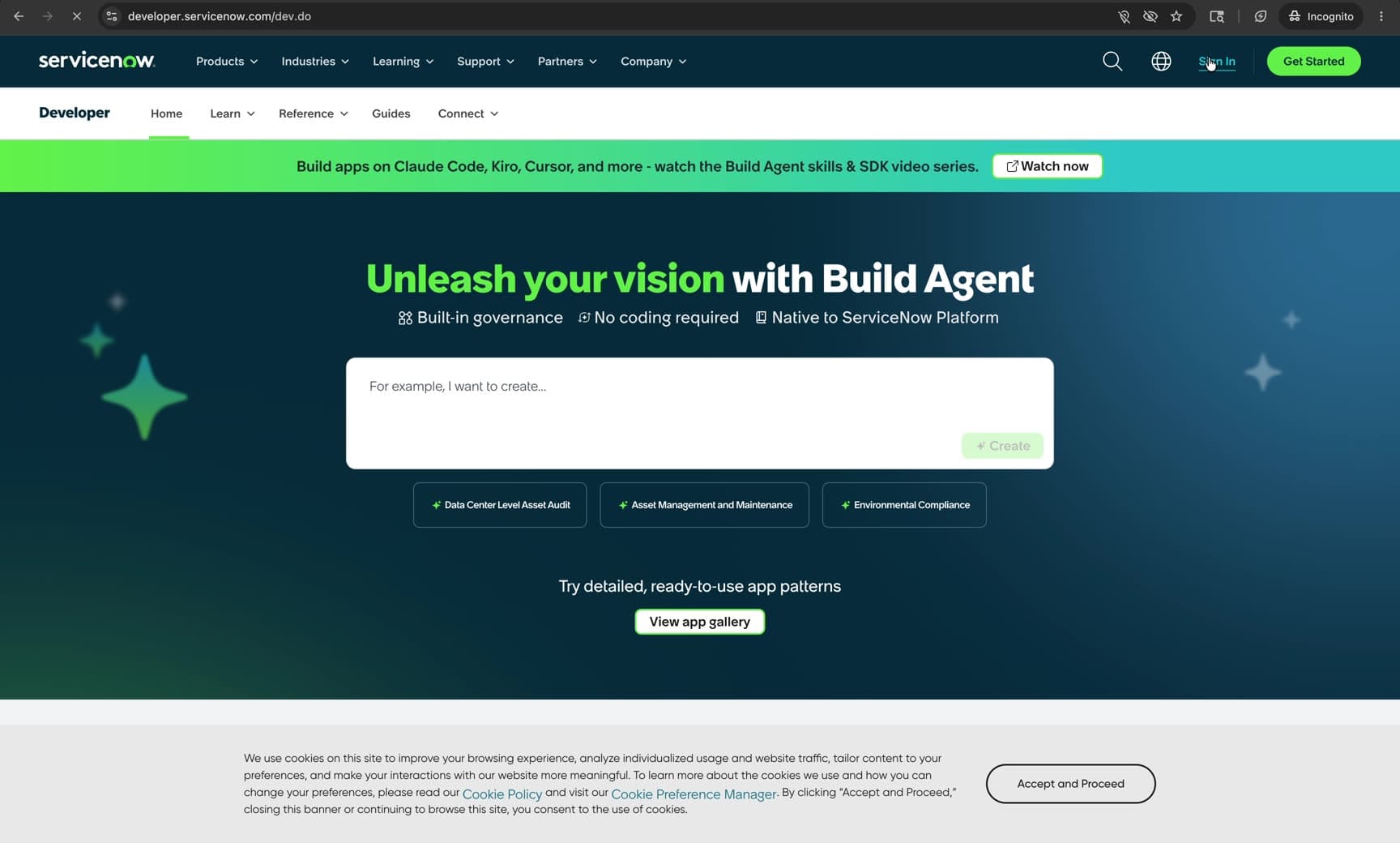
Go to the ServiceNow developer portal and sign in.
-
If you don't have an account, select New user? Get a ServiceNow ID and create one.
-
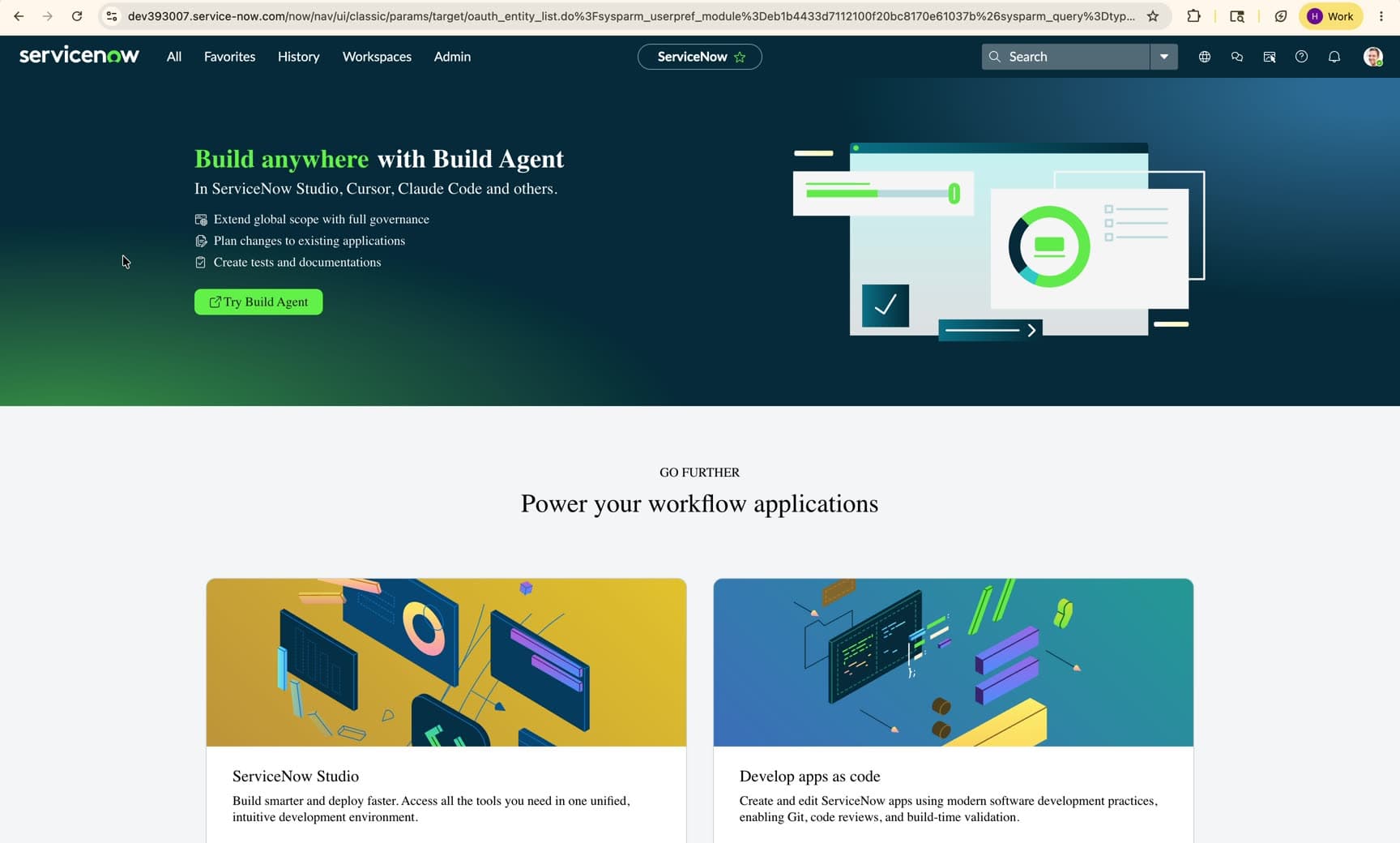
Once you're signed in, you land on the developer home page, where you can request and manage your personal instance.
-
In your instance, open Application Registry and click New to see the OAuth application types, then continue from Step 2: Create the OAuth application.
Appendix: set up users and agent groups in ServiceNow
Atomicwork only syncs ITSM users who belong to a ServiceNow group with the right role. A group with the itil role syncs its members as Workspace Agents, and a group with the itil_admin role syncs them as Workspace Admins. If a user or group you expect isn't showing up in Atomicwork, check these four things in ServiceNow.
A. Create a user
- In ServiceNow, click All, type "Users" in the filter, and select User Administration > Users.
- Click New.
- Enter the User ID, first name, last name, email and password, and make sure Active is selected.
- Click Submit.
B. Create an agent group
- In the All menu, type "Groups" in the filter and select User Administration > Groups.
- Click New.
- Enter a group name, such as "IT Support — Atomicwork", and any optional details like a description or manager.
- Click Submit.
C. Assign a role to the group
- Open the group record.
- In the Roles related list, click Edit.
- Add
itilto sync members as Workspace Agents, oritil_adminto sync them as Workspace Admins. - Click Save.
D. Add users to the group
- On the same group record, click Edit in the Group Members related list.
- Move the users you want into the selected list and click Save.
The new users and roles appear in your linked Atomicwork workspace at the next sync.
Appendix: create service catalog items in ServiceNow
Atomicwork imports active ITSM catalog items and their form variables into the linked workspace's catalog. To create one in ServiceNow:
A. Create the catalog item
- In ServiceNow, click All, type "Maintain Items" in the filter, and select Service Catalog > Catalog Definitions > Maintain Items.
- Click New.
- Fill in the name, short description, catalog (such as "Service Catalog") and category. Make sure Active is selected, then click Submit.
B. Add variables to the catalog item
- Open the catalog item.
- In the Variables related list, click New.
- Select a variable type, such as Single Line Text, Multi Line Text, Choice, Date, Reference or Checkbox.
- Fill in the Question (the label requesters see) and the Name (the internal key). Set it as mandatory or give it a default value if you need to, then click Submit.
- Set the order of the variables with the Order field on each variable record.
For how each variable type comes across to Atomicwork, see Catalog and knowledge.
Appendix: x_atomicwork.bridge role ACLs
Create the x_atomicwork.bridge custom role in ServiceNow and give it the ACLs below. Most are read-only; the comment and work-note ACLs also need write.
| ACL | Operation | Level | Decision |
|---|---|---|---|
incident.comments | read | field | allow |
incident.comments | write | field | allow |
incident.work_notes | read | field | allow |
incident.work_notes | write | field | allow |
io_set_item | read | record | allow |
item_option_new | read | record | allow |
item_option_new.* | read | field | allow |
kb_knowledge | read | record | allow |
kb_knowledge_base | read | record | allow |
kb_uc_can_read_mtom | read | record | allow |
kb_uc_cannot_read_mtom | read | record | allow |
question | read | record | allow |
question.* | read | field | allow |
question_choice | read | record | allow |
question_choice.* | read | field | allow |
sc_cat_item_user_criteria_mtom | read | record | allow |
sc_cat_item_user_criteria_no_mtom | read | record | allow |
sc_item_option_mtom | read | record | allow |
sys_audit | read | record | allow |
sys_choice | read | record | allow |
sys_choice.* | read | field | allow |
sys_db_object | read | record | allow |
sys_dictionary | read | record | allow |
sys_dictionary.* | read | field | allow |
sys_glide_object | read | record | allow |
sys_glide_object.* | read | field | allow |
sys_group_has_role | read | record | allow |
sys_journal_field | read | record | allow |
sys_journal_field | write | record | allow |
sys_user_has_role | read | record | allow |
user_criteria | read | record | allow |
Note: The
sys_journal_fieldread and write ACLs already ship with every ServiceNow instance. Rather than creating new ones, open them under System Security > Access Control (tablesys_journal_field, record type) and addx_atomicwork.bridgeto their Requires role list. Their sys_ids: read7fa32d4e9f6012103b32602e9a0a1c36, writed1b36d4e9f6012103b32602e9a0a1c9e.
Access covered by the itil role (users, groups, attachments, and the departments, companies, and locations referenced by audience rules) isn't repeated here.
Appendix: what Atomicwork reads from ServiceNow
For transparency, here's what Atomicwork reads from each area and the filters applied.
- Users —
sys_user, limited to active users with an email (active=true, email not empty). - Knowledge —
kb_knowledge(published and active) andkb_knowledge_base. Article visibility comes fromuser_criteria: article-level allow/deny (kb_knowledge_user_criteria_mtom/_no_mtom) and knowledge-base-level allow/deny (kb_uc_can_read_mtom/kb_uc_cannot_read_mtom), unioned onto each article. - Catalog items (ITSM) —
sc_catalog,sc_category, and activesc_cat_itemrecords, with form variables fromitem_option_new(plusio_set_item,question_choice,sys_choice). Visibility fromsc_cat_item_user_criteria_mtom/_no_mtom. - Catalog items (HRSD) — active
sn_hr_core_servicerows; form fields come from each service's ownservice_tableandservice_table_fields, notitem_option_new. - Agents and roles — from
sys_user_has_role(active users). ITSM:itil→ Workspace Agent,itil_admin→ Workspace Admin. HRSD:sn_hr_core.case_writer→ Workspace Agent,sn_hr_core.admin→ Workspace Admin. - Agent groups —
sys_user_group, only groups with an agent-grade role (sys_group_has_role); membership fromsys_user_grmember(active users), mirrored with replace semantics. - CMDB assets — read through a separate path.
Related
- Setting up an AI Coworker
- Trusted knowledge for employee questions
- Stay updated with notifications
- Need help? Contact support@atomicwork.com for assistance with your ServiceNow integration.