
Workflow Foundations
Workflows 101
Workflows 101
Workflows define the triggers, conditions, and actions required to achieve a specific goal or outcome. Workflows can range from processes like submitting a device report for approval to a user account provisioning workflow. Every team has its processes and methodology, so every Atomicwork workspace owner can configure their workflows to act on their requests. Workflows are executed in parallel, so multiple workflows can run at the same time on a request. Execution of workflows will not pause if one of them goes into a wait state when running on a request.
Setting up workflows
-
Go to Settings > Enterprise automation > Workflow library. Select Organization to apply this across the organization, or select a workspace to apply it to that workspace only.
-
Choose a request type.
Workflows are organized by request type and cannot be ported from one kind to another once created, so please make sure you pick the right type before creating your workflow.
-
Click the Create a workflow button. Enter a name and description for the workflow. As you configure triggers and actions, Atomicwork automatically generates the description for each node based on the current configuration.
-
Add a trigger.
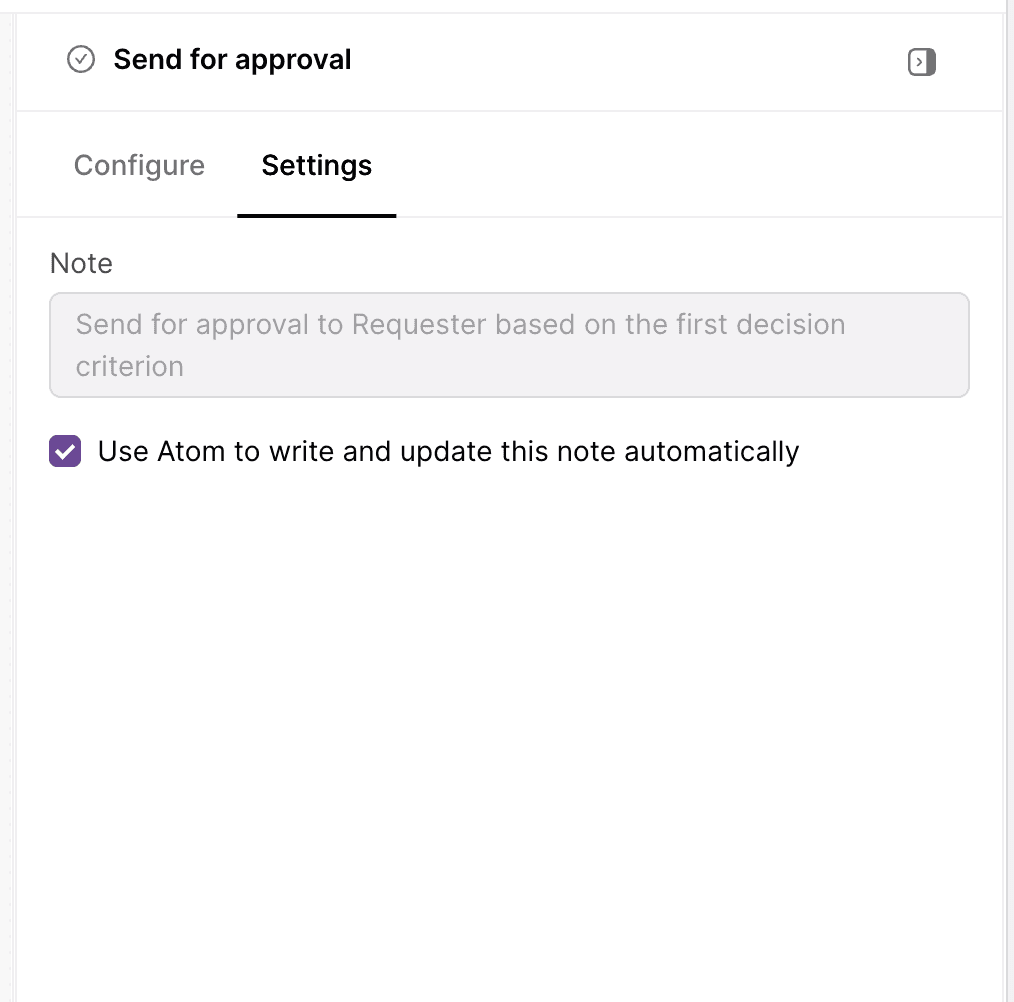
If you want to write your own note, open the individual trigger or action node, go to Settings, and turn off automatic note generation.
Triggers are events that let Atomicwork know how to execute a workflow. For example, a status change for a service request from “low” to “high” could trigger a workflow that lets a supervisor know to look at the request. You can filter trigger events with conditions to capture the complete request state. For example, if you want a workflow to only act on requests that have high priority when a service request is updated, you can!
-
Pick one or more events from Add event. Any one of them starts the workflow. For example, a request workflow can start on Request is created, Status is updated or Reply is sent. For every event available for requests, changes and assets, see Workflow events.
-
Add the conditions to be checked before the workflow executes. These conditions can be based on request or requester attributes. Conditions can also be based on tags. Use the Has attachment filter to run or skip an automation depending on whether the request has files attached.
-
You can add multiple triggers with multiple conditions and specify whether you want any of these conditions or all of them to match for the workflow to be executed.
You can create workflow branches by adding conditions so Atomicwork knows when to execute what action. For example, you could have a separate set of actions for Atomicwork to complete (post to the IT channel) when a high-priority service request is created and another set of actions (DM the head of IT) when a senior executive makes a high-priority service request.
-
Once you add a trigger, you can add the actions to be executed. Here’s a list of all the supported actions:
-
Update request attributes. You can automatically update default request attributes like status, priority, and tags as well as custom attributes
-
Add a tag. You can add tags to requests or incidents based on certain conditions..
-
Make an HTTP request. HTTP request actions support GET, POST, PUT, PATCH, DELETE methods. You can reuse credentials saved in your credential store while setting up an HTTP request action.
-
Execute code. Admins can run custom JavaScript or TypeScript in a workflow and use AI Assist in the editor to generate or refine code from natural-language prompts. For detailed setup instructions, see the Execute Code action guide.
-
Send for approval. Save approval policies for ease of access so you can quickly add approvers to requests and shorten the approval cycle. Approval-related workflows can also manage approvers and send reminders to pending approvers.
-
Send an email. You can specify the recipients, the sender’s name, the subject, and the message (complete with dynamic placeholders). Add the Attachments placeholder to send the request's files along with the notification.
-
Add a private note. Add a note to provide guidelines or instructions to agents for certain kinds of tickets.
-
Send reply to requester. You can send an automated reply to the requester providing instructions or requesting additional details for certain types of tickets.
-
Third-party actions like sending a Slack DM or creating a new user on Azure AD.
-
-
When you’ve finished configuring a workflow, click Publish so that Atomicwork can execute it.
User workflows
Workflows can also be triggered by users, not only by requests. A user workflow runs either:
- On user events: when a user is created or updated, or when a specific attribute such as their exit date or reporting manager changes. See Workflow events for the full list.
- On a schedule: against a filtered set of users, at a cadence you pick.
You build user workflows in the same builder, with the same actions. Only the trigger is new.
Some ways to use them:
- Start an onboarding checklist when a new joiner lands in Atomicwork.
- Send announcements to a slice of your organization.
- Send reminders that repeat until someone acts.