
Access management
Provisioning access with custom workflows
Use a Custom action entitlement and a request workflow to provision access in any app, with any steps you need.
Not every app has an Okta or Entra group behind it. With a Custom action entitlement, an access request becomes a service request, and a workflow you build picks it up and does the provisioning. Call an API, run a third-party action, ask an AI coworker, notify the app owner. You decide the steps.
How it works
- You add an entitlement to an application and set its provisioning method to Custom action.
- Atomicwork creates a service form for that entitlement. It's listed under the Access Management service category as <Application> - <Entitlement>, for example Figma - Figma Editor.
- When an employee's access request for the entitlement is approved, Atom raises a service request for that form in the workspace you picked on the entitlement.
- A request workflow in that workspace triggers on Request is created with that Service form and Service category, and runs your provisioning steps.
Before you begin
- You need permission to manage applications (Settings > Enterprise automation > Access management > Applications) and to create workflows in the target workspace.
- The AccessOps Manager coworker must be published so Atom can take access requests. See Setting up agentic access provisioning.
Step 1: Create a Custom action entitlement
- Go to Settings > Enterprise automation > Access management > Applications, open the application (or click Add to create it), and open the Entitlements tab.
- Click Add. Give the entitlement a name and description, for example Figma Editor, "Edit access to Figma design files". Click Next.
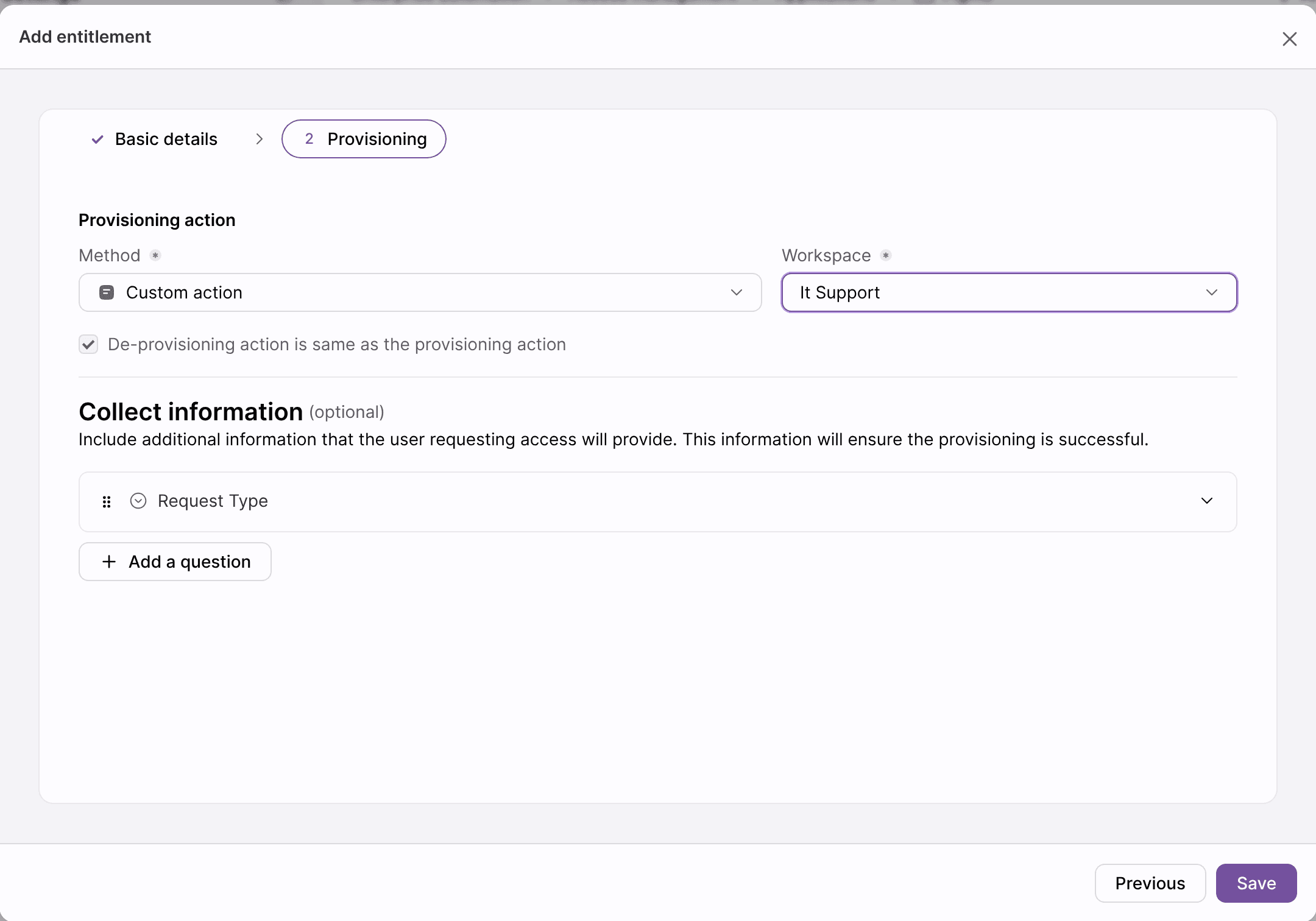
- Under Provisioning action, set Method to Custom action ("Grant access through a custom workflow or manual agent action").
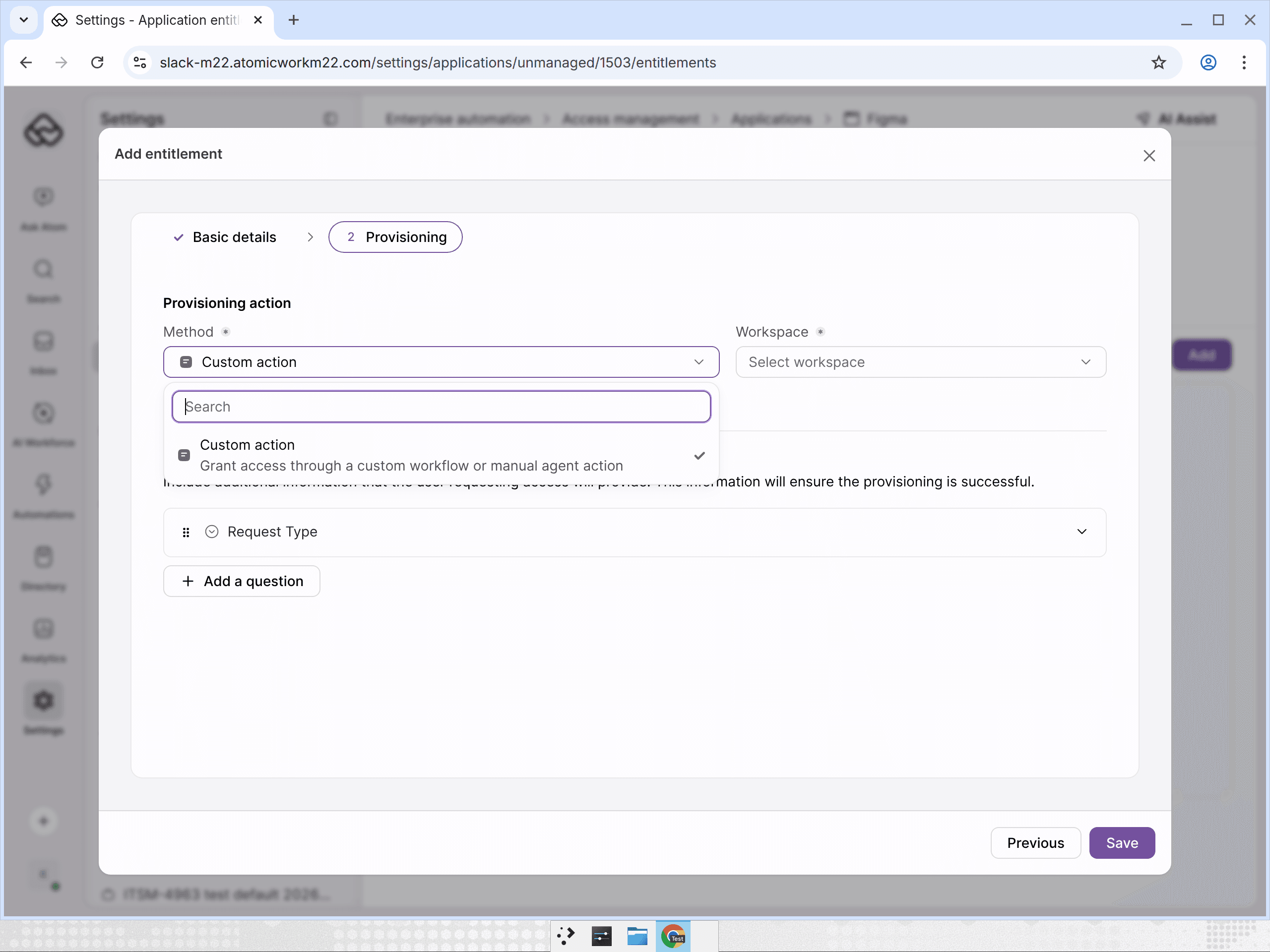
- Pick the Workspace where the service request should be created. Your workflow has to live in this workspace.
- Leave De-provisioning action is same as the provisioning action checked, or clear it to set a separate revoke method.
- Optional: under Collect information, click Add a question for anything your workflow needs from the requester, such as a team name or a license tier. The answers arrive on the request, so your workflow can read them.
- Click Save.
Step 2: Add the entitlement to a published access policy
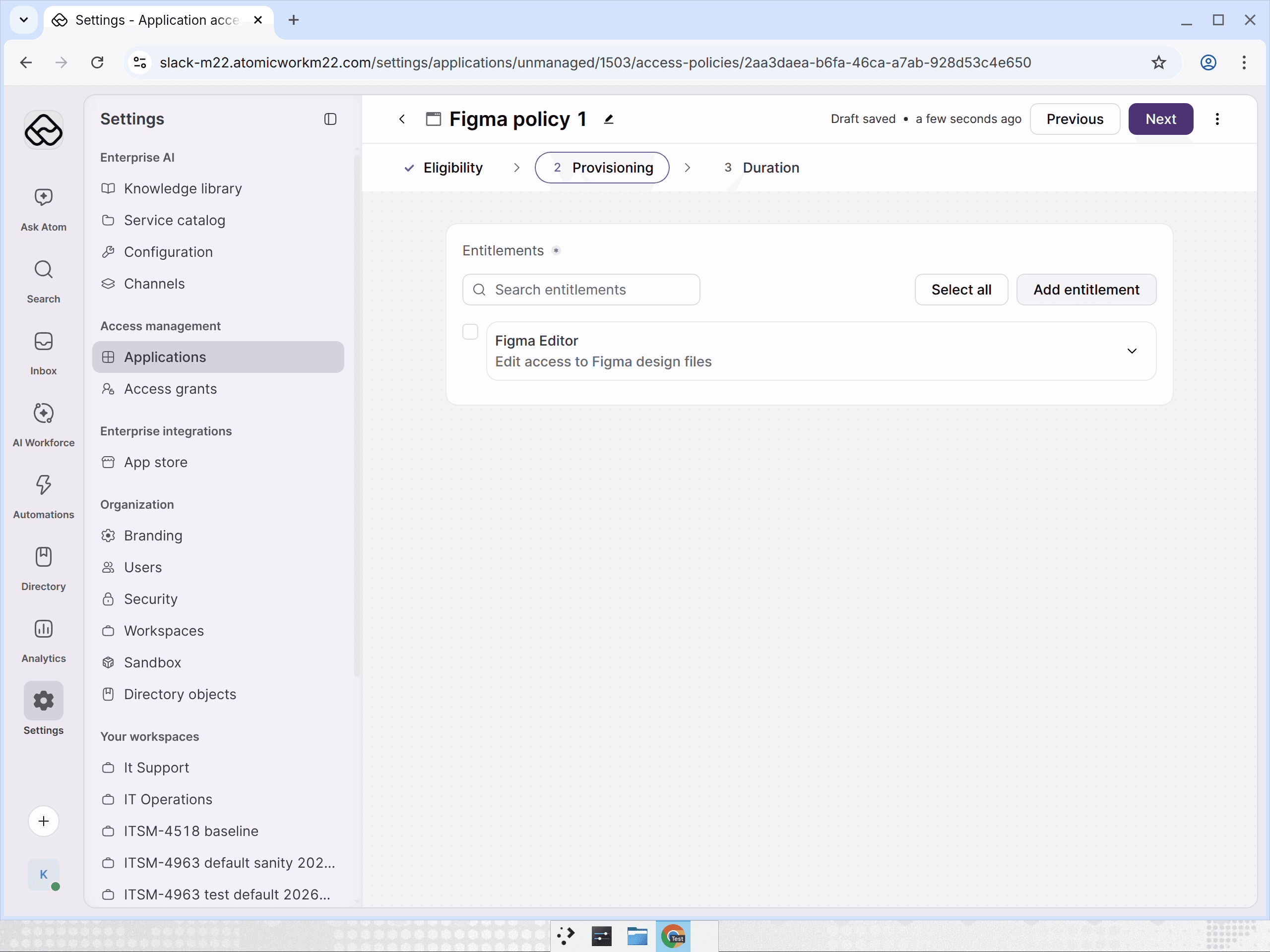
The entitlement's service form only appears in workflow filters once a published access policy includes it.
- On the application, open Access policies and click Add.
- Pick the Audience (segment) and approvals. Click Next.
- Select the Custom action entitlement. Click Next.
- Choose Just-in-time or Permanent access, then click Publish.
Step 3: Build the provisioning workflow
- Go to Automations → Event-based, pick Request and the workspace you selected on the entitlement, then click New. Describe the workflow to AI Assist, or start from a draft and edit it in the Builder.
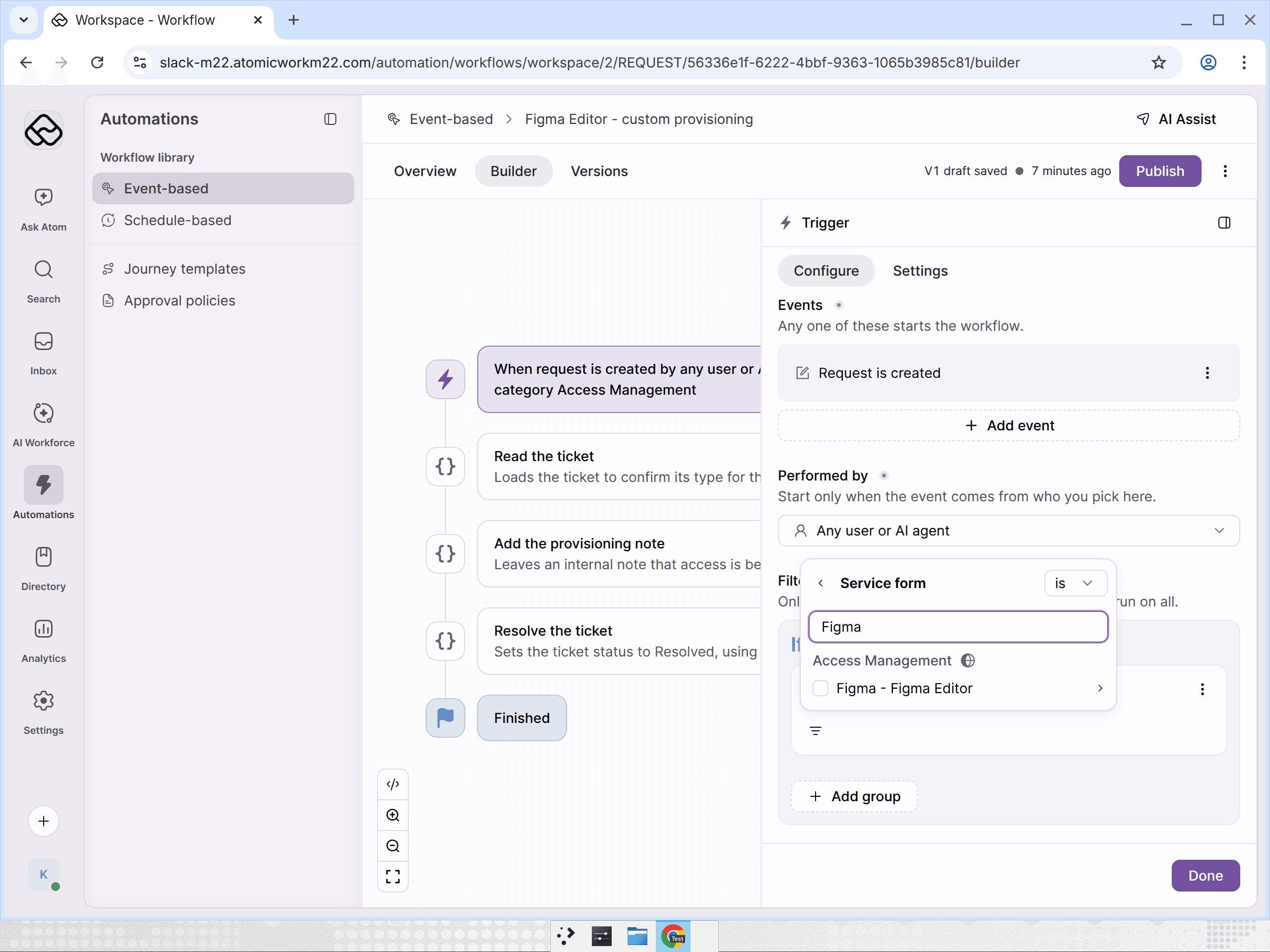
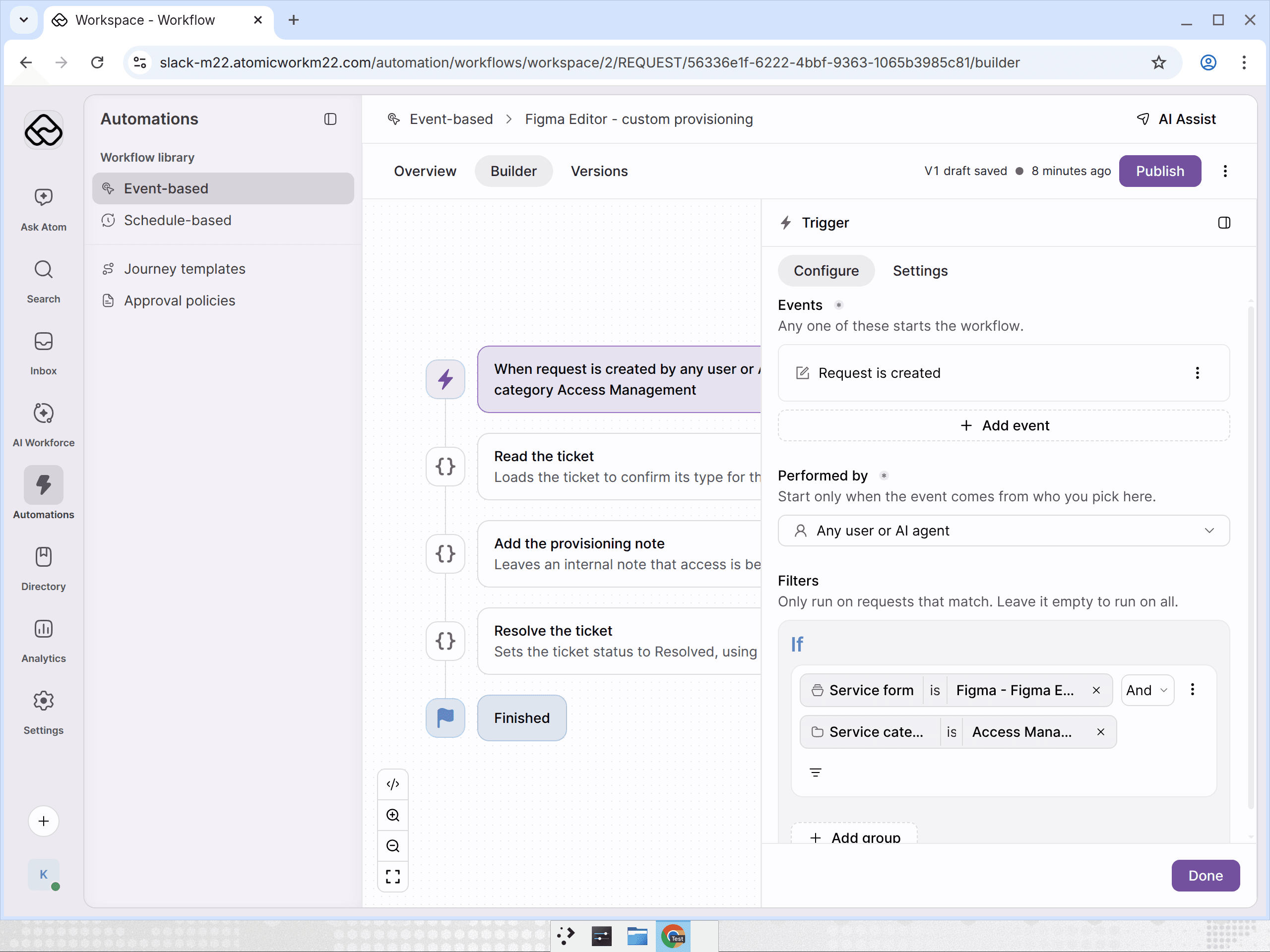
- Open the trigger and set:
- Events: Request is created
- Filters:
- Service form is <Application> - <Entitlement> (search for the app name; the form sits under Access Management)
- Service category is Access Management
- Add the steps that provision access. Some examples:
- Call the app's API or a third-party action to create the account or add the user to a group.
- Use form answers from Collect information in the call.
- Add a note on the request with what was done.
- Set the request to Resolved once provisioning succeeds, or assign it to an agent when it fails.
- Click Publish.
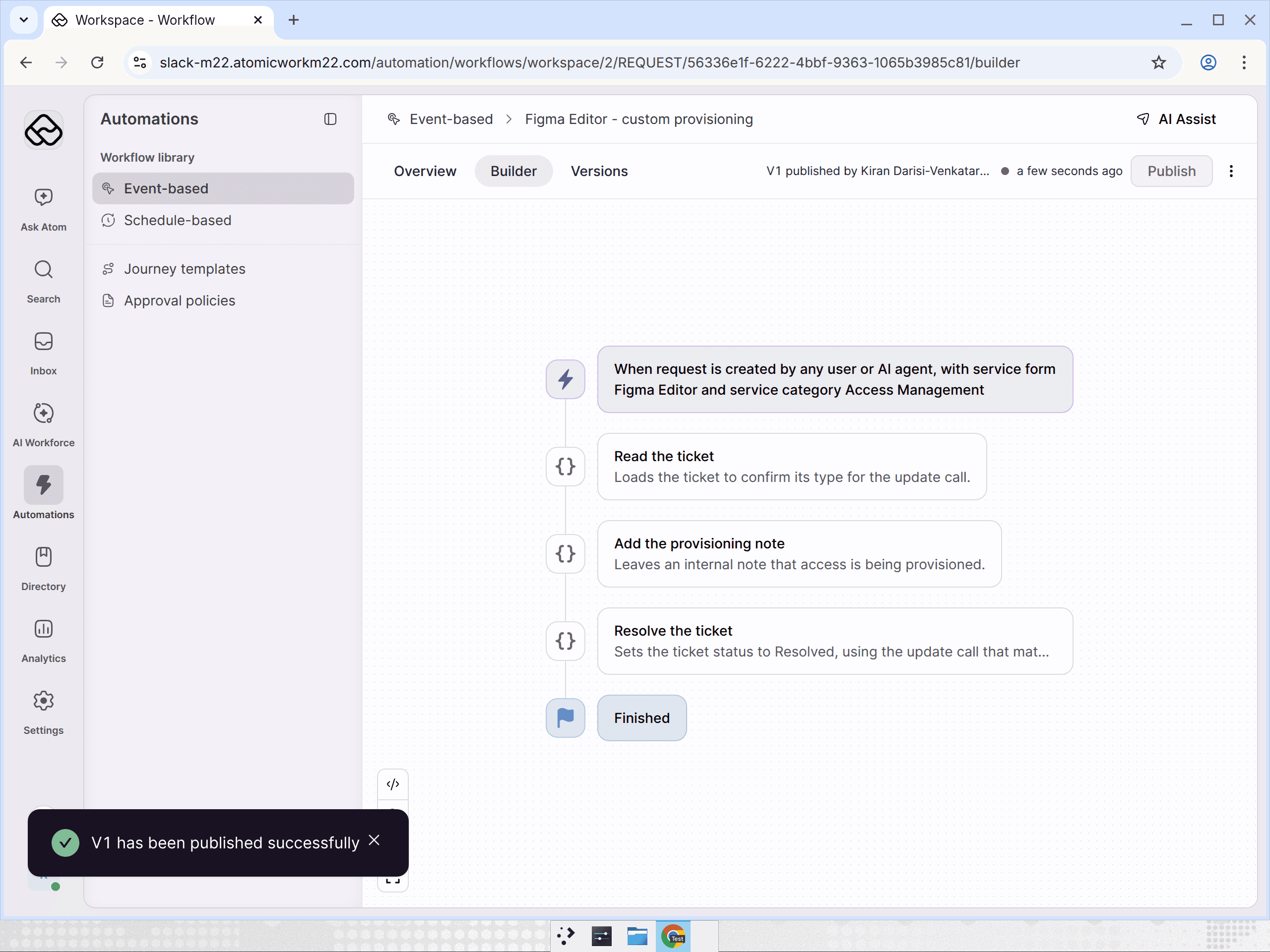
The example above adds a private note ("Provisioning Figma Editor access for the requester") and then resolves the request. In a real setup, put your provisioning call between those two steps.
Step 4: Test it
- As a user in the policy's audience, ask Atom for the entitlement, for example "I need Figma Editor access".
- Once the request is approved, Atom raises a service request for Figma - Figma Editor in your workspace.
- Open the workflow's Overview tab and check Run logs for a successful run, then open the request to see your workflow's notes and status changes.
Tips
- One workflow per entitlement keeps provisioning logic easy to follow. To share logic, add several service forms to the same Service form filter.
- Revoking access: if you set a separate Custom action for de-provisioning, add a matching workflow for revoke requests.
- Can't find the service form in the filter? Check that the entitlement is in a published access policy and that you're building the workflow in the workspace selected on the entitlement.