
Identity & Access Management
Okta
Okta
Overview and capabilities
Integrate Atomicwork with Okta to streamline user authentication and access management, ensuring a secure and seamless login experience for your team. This integration enhances security protocols while simplifying access, allowing your team to focus on their work without worrying about credentials. This reduces the risk of unauthorized access by ensuring that only the right people have access to the right resources at all times.
There are two parts to using Okta with Atomicwork:
- Connect Okta to Atomicwork. Atomicwork syncs employee data from Okta and acts on your Okta org on your behalf. Connect with the Atomicwork API Service (Okta Integration Network) or with an Okta API token. Once Okta is connected, you can also use:
- Okta actions in journeys and workflows: Automate actions in Okta, such as creating accounts, managing group memberships, and suspending or deactivating accounts, through workflows and journeys.
- Password reset with Atom: Add the Okta password reset skill to Atom so employees can reset their own Okta password in a conversation, without waiting for an agent.
- App access through access management: Employees ask Atom for access to an app, and the AccessOps Manager coworker provisions it according to your access policies.
- Sign in to Atomicwork with Okta. Single sign-on (SSO) lets your employees and agents log in to Atomicwork with their Okta credentials. SSO is set up separately from the connection.
Connect with the Atomicwork API Service (Okta Integration Network)
This guide explains how to connect your Okta org to Atomicwork using the Atomicwork API Service integration in the Okta Integration Network (OIN) catalog.
This is an API Service Integration. It lets Atomicwork call the Okta Management API on your behalf for identity data, app inventory and IT automation. It does not provide single sign-on or user provisioning into Atomicwork; those are separate integrations (see SP-initiated SSO).
Prerequisites
- An Okta org on Okta Identity Engine, with an administrator who holds the Super Administrator role (required to install an API Service Integration and grant its scopes).
- An Atomicwork tenant and a user with the Organization admin role in it.
- Access to your Atomicwork tenant URL, for example
https://<your-company>.atomicwork.com. - No Okta API token, SAML metadata or inbound network allow-listing is needed. Atomicwork calls Okta outbound over HTTPS only.
Supported features
- User (people) sync — import Okta users into Atomicwork as employees, on a schedule or on demand, with attribute mapping from the Okta user profile and optional group or profile filters.
- Application sync — import Okta app integrations into Atomicwork as SaaS application records, including app assignments, for software asset and access visibility.
- Group read — read Okta groups and group memberships for filtering, mapping and access reviews.
- IT automation actions — Atomicwork workflows and AI coworkers can run Okta operations, for example look up a user, activate or deactivate a user, reset a factor, add or remove a group membership, and assign or unassign an application.
- Okta MCP tools — the same credentials can connect the Okta MCP server in the Atomicwork MCP store, which exposes Okta read and write operations as tools to Atomicwork AI coworkers.
- Troubleshooting context — read access to the Okta System Log, authenticators, devices, administrative role assignments, policies and device assurance policies, used when an agent or coworker diagnoses a sign-in or access issue.
Not supported by this integration:
- Single sign-on into Atomicwork (use the separate Atomicwork SAML integration).
- SCIM provisioning from Okta into Atomicwork. Atomicwork pulls users through user sync instead.
- Optional, per-customer scope selection. OIN API Service Integrations have a fixed scope set, so every customer grants the same scopes listed below.
Scopes granted on installation
| Scope | Used for |
|---|---|
okta.users.manage | Read users for sync; create, update, activate and deactivate users from automations |
okta.groups.manage | Read groups and memberships; add and remove members from automations |
okta.apps.manage | Read app inventory and assignments; assign, unassign and manage apps from automations |
okta.logs.read | Read the System Log when diagnosing sign-in and access issues |
okta.schemas.read | Discover custom user profile attributes for field mapping |
okta.userTypes.read | Resolve user types during sync |
okta.policies.read | Read sign-on and authenticator policies for troubleshooting |
okta.deviceAssurance.read | Read device assurance policies for troubleshooting |
okta.devices.read | Read device inventory for access troubleshooting |
okta.authenticators.read | Read configured authenticators for MFA troubleshooting |
okta.roles.read | Read administrative role assignments for access reviews |
Configuration steps
Step 1 — Add the integration from the OIN catalog
-
Sign in to the Okta Admin Console as a Super Administrator.
-
Go to Applications and Resources > API Service Integrations.
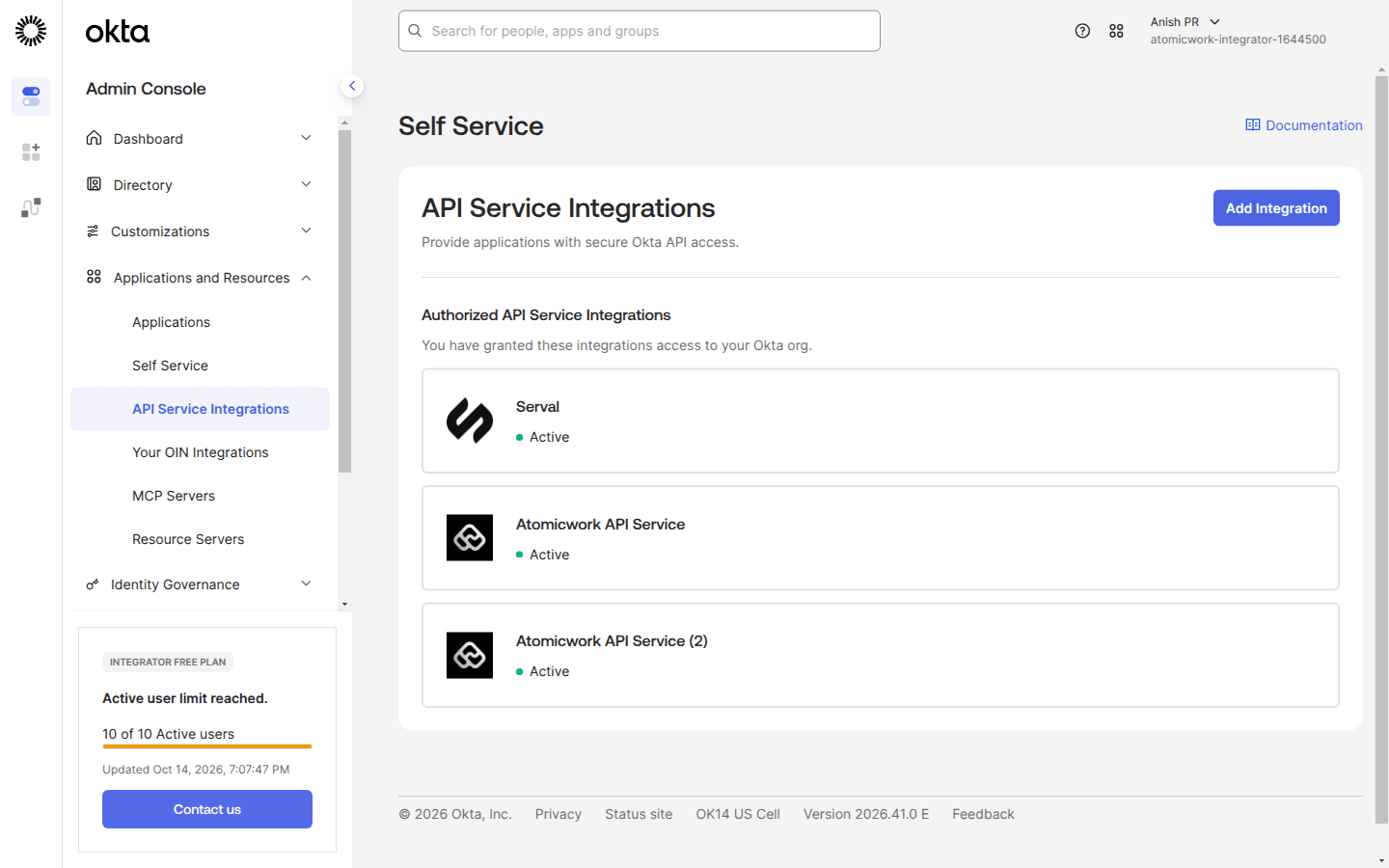
The API Service Integrations page lists the integrations installed in your org.
-
Click Add Integration.
-
On Select an integration, find Atomicwork API Service, select its tile, and click Next.
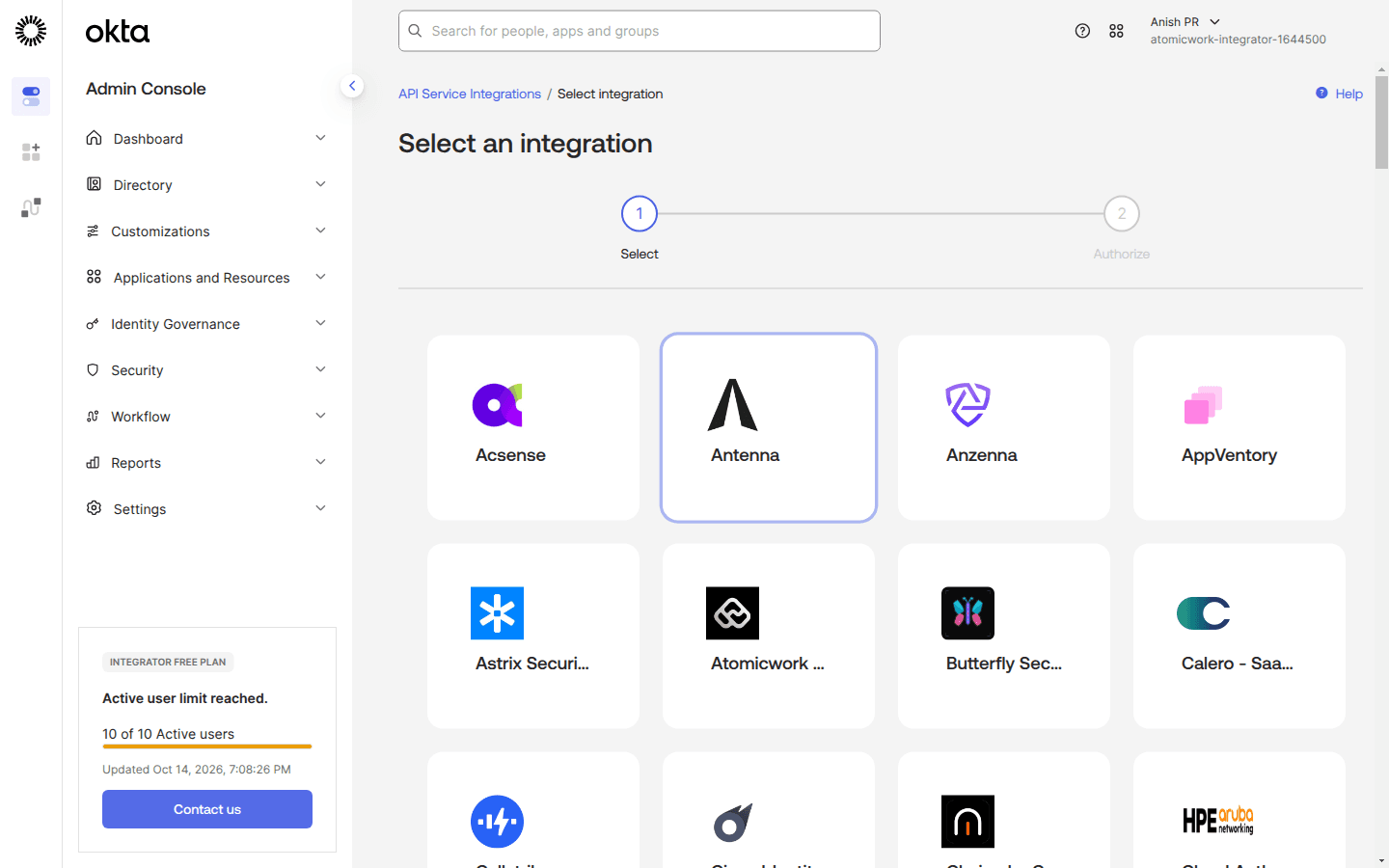
Select the Atomicwork API Service tile in the OIN catalog.
This is a different catalog entry from the Atomicwork integration used for single sign-on. Only Atomicwork API Service appears under API Service Integrations.
-
Review the requested scopes, then click Add integration. Okta installs the integration and grants the scopes listed above.
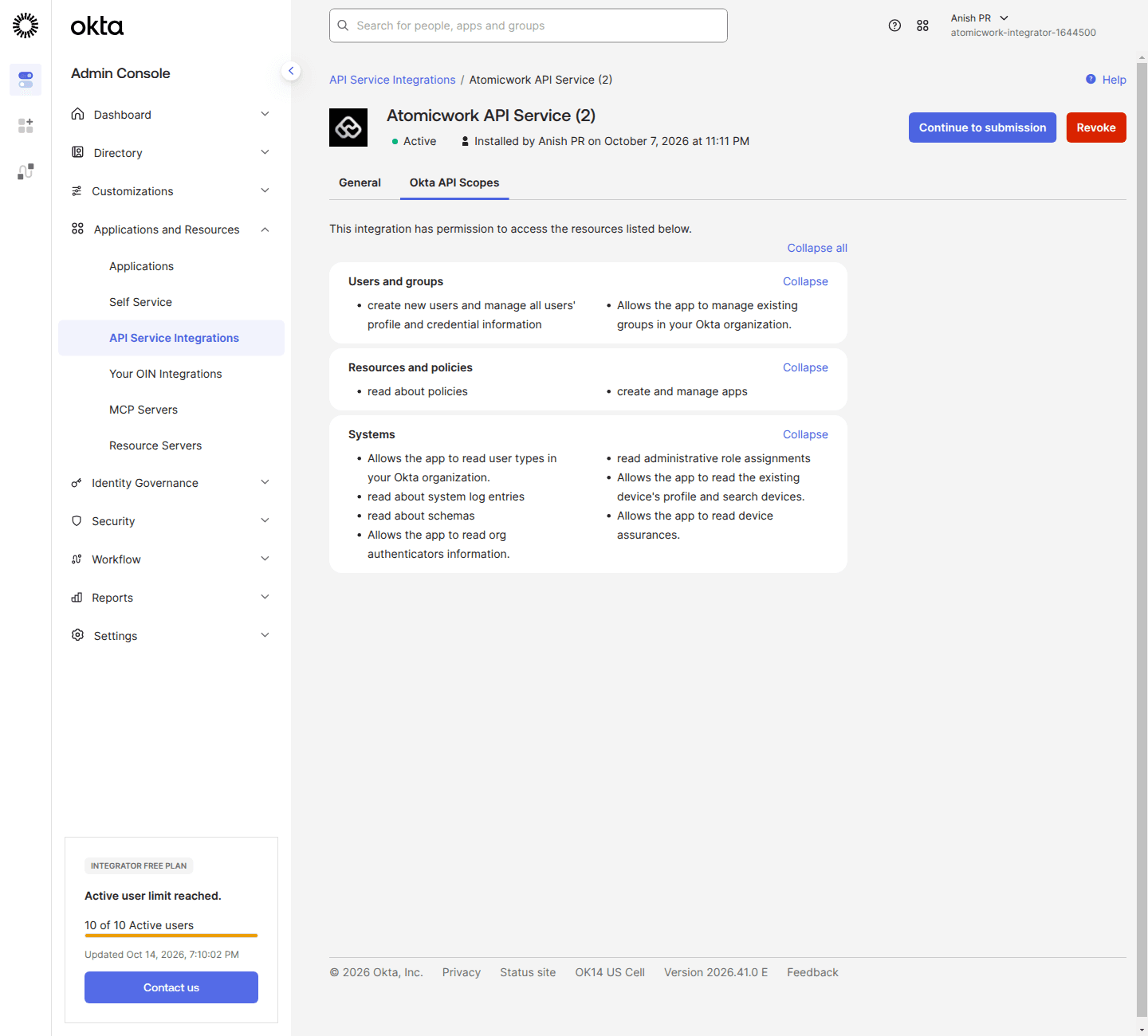
After installation, the Okta API Scopes tab shows the permissions granted to Atomicwork.
-
Okta displays the Client ID and Client secret. Copy both now.
The client secret is shown only once. If you lose it, open the integration in Okta and click Generate new secret.
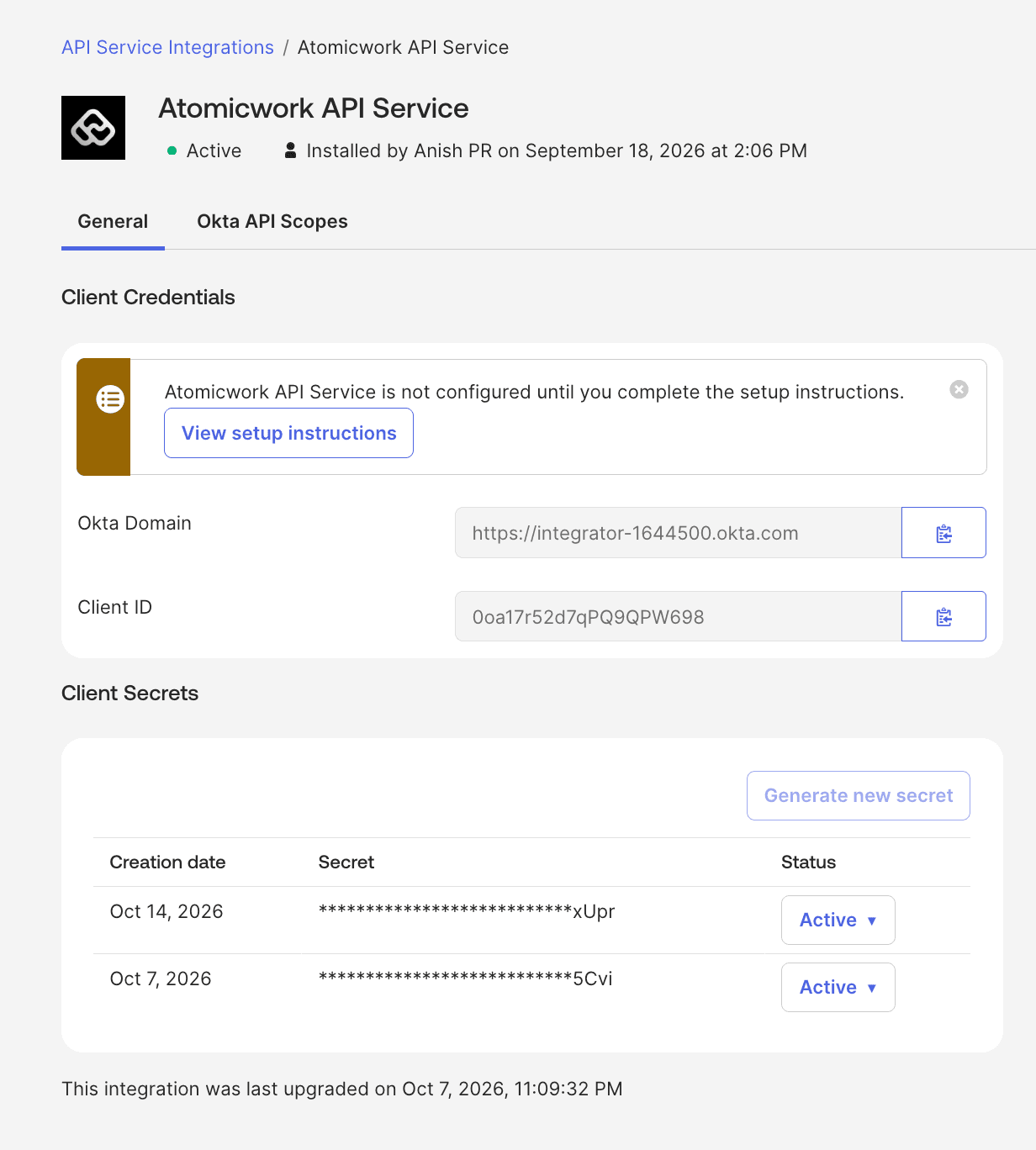
A connected integration shows as Active, with the client secret masked.
Step 2 — Connect Okta in Atomicwork
- Sign in to Atomicwork as an Organization admin.
- Go to Settings > Enterprise integrations > App store > Okta (OAuth).
- Click Connect, then enter:
- Okta domain — your Okta org URL, for example
https://<your-org>.okta.com. Use your custom domain if you sign in through one. Do not use the admin console URL (https://<your-org>-admin.okta.com); it has no token endpoint and the connection fails. - Client ID — the value from step 1.
- Client secret — the value from step 1.
- Okta domain — your Okta org URL, for example
- Click Connect. Atomicwork requests a token from your Okta org and validates it. On success the card shows Connected.
Step 3 — Configure user sync
- On the connected Okta (OAuth) app page in Atomicwork, turn on Sync people data.
- In Mapped attributes, map Okta user profile attributes to Atomicwork employee fields. Email and name are mapped by default; add custom attributes discovered from your Okta user schema as needed.
- Optionally, in Filter, add a filter so that only the users you want are imported, for example members of a specific Okta group.
- Under Manual sync, click Sync now. The Sync log reports the records created and updated, and later runs happen automatically on the configured schedule.
- To import Okta app integrations as SaaS application records, turn on Sync applications. Applications sync every 24 hours.
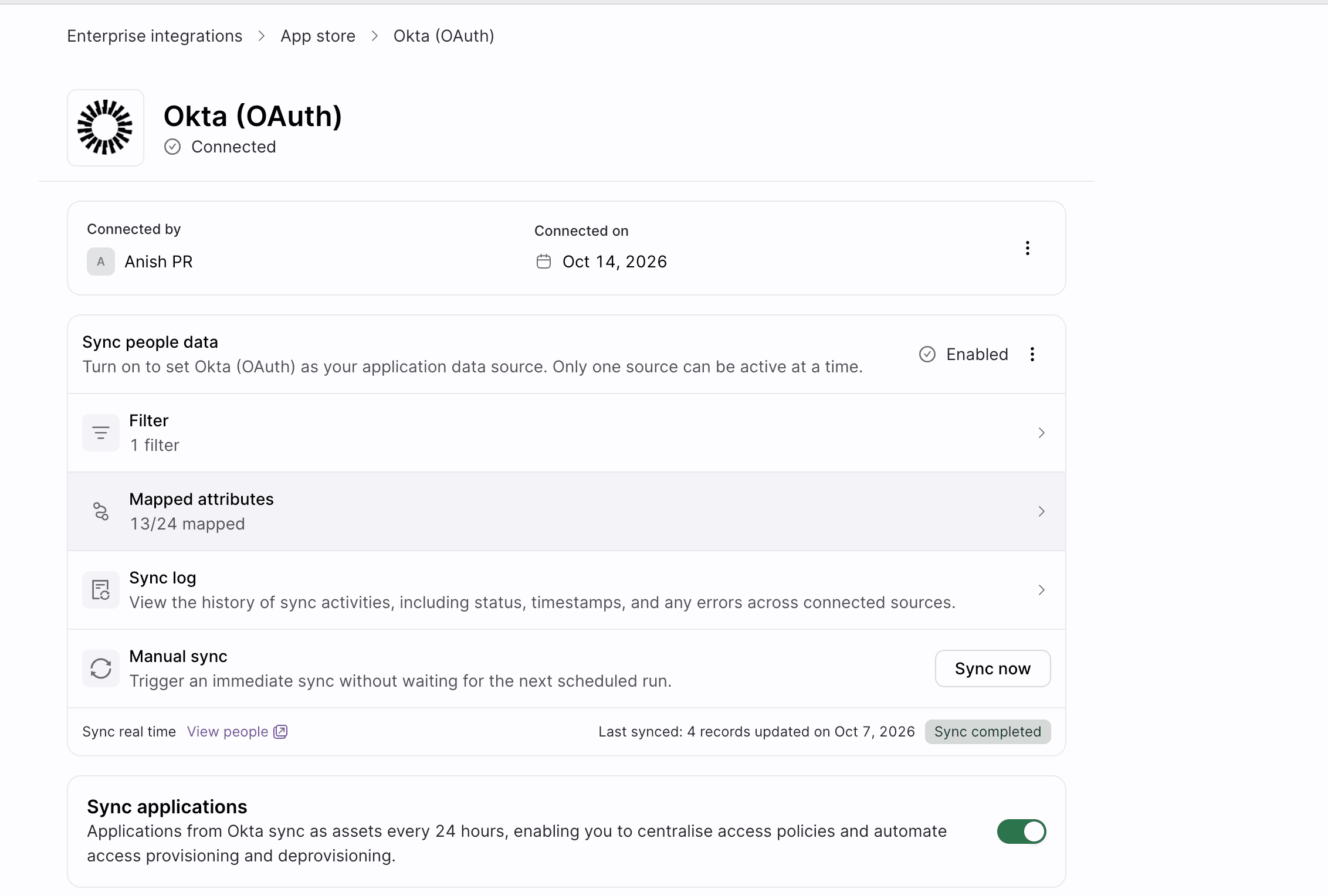
User sync configuration for the connected Okta integration.
Step 4 — Enable Okta tools for AI coworkers (optional)
-
Go to AI Workforce > Registry > MCP store.
-
Search for Okta, open the Okta (OIN) server and click Connect.
-
Enter the same values from step 1 in Org URL, OAuth Client ID and OAuth Client Secret, then click Connect. The server status becomes Connected and its tools become available to coworkers that you grant them to.
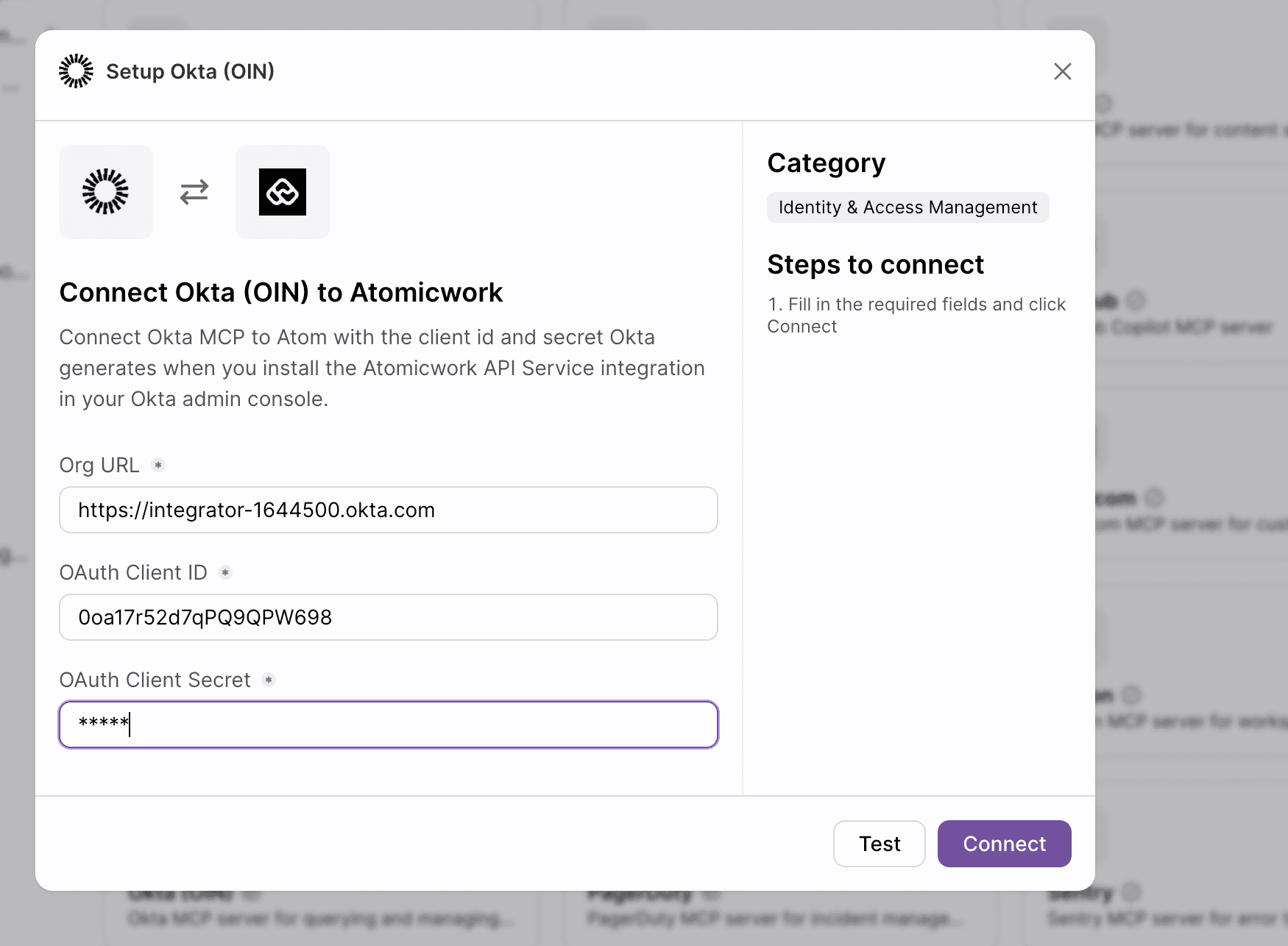
Connect the Okta (OIN) server with your org URL and the credentials from step 1.
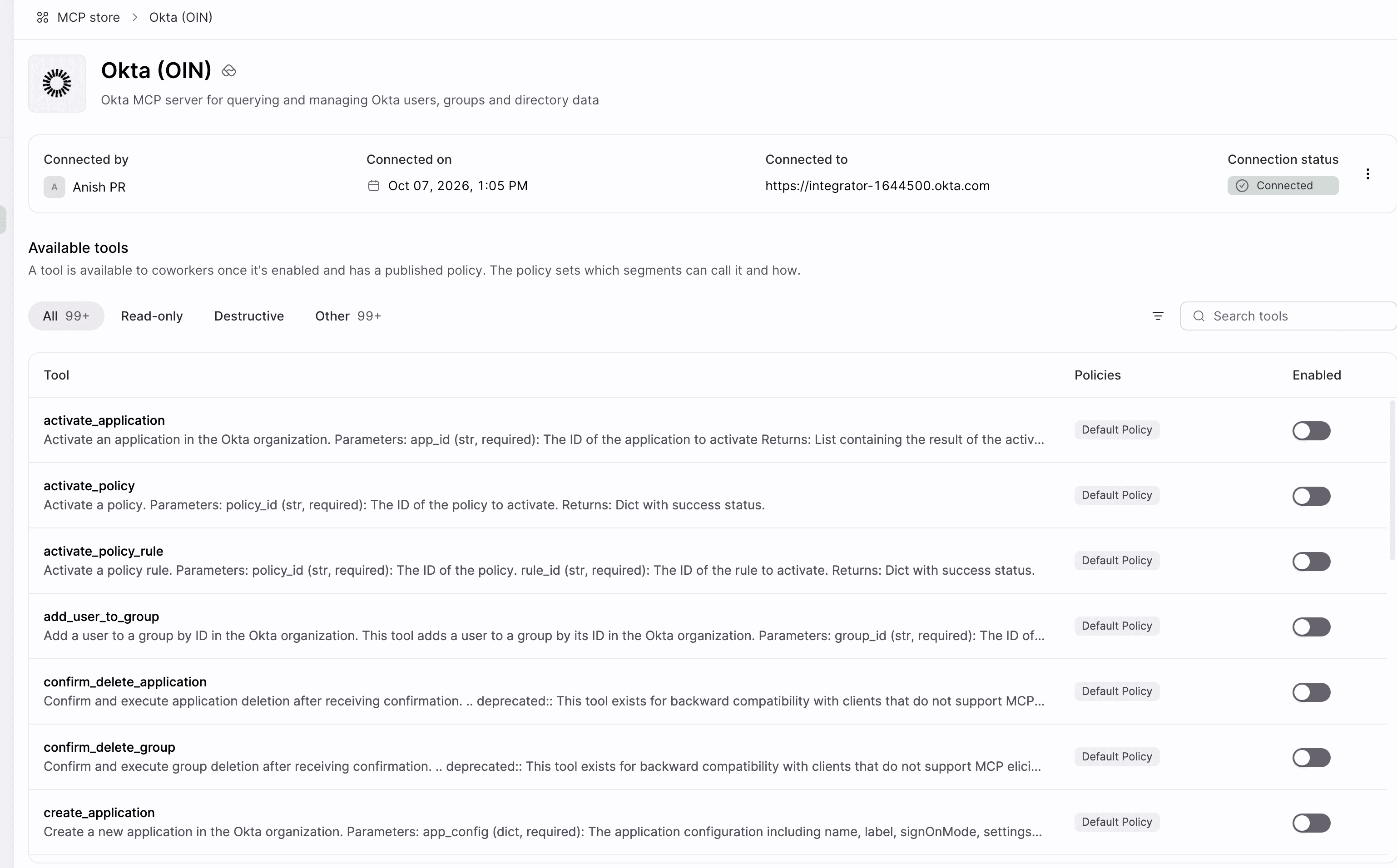
The connected Okta MCP server and the tools it exposes to AI coworkers.
Step 5 — Verify
- The Okta (OAuth) card in Settings > Enterprise integrations > App store shows Connected.
- A user sync run completes and the imported employees appear under Settings > Employees.
- An Okta action in a workflow, for example a user lookup, returns the expected Okta record.
SP-initiated SSO
The Atomicwork API Service integration does not provide single sign-on. API Service Integrations in the OIN authenticate machine-to-machine with the OAuth 2.0 client credentials flow, and have no sign-in surface or SAML assertion.
To let your employees sign in to Atomicwork with Okta, add the separate Atomicwork SSO integration from the OIN catalog and follow its own configuration guide. Both integrations can be installed in the same Okta org at the same time; they are independent and neither requires the other.
Troubleshoot
| Symptom | Cause and resolution |
|---|---|
invalid_client when connecting in Atomicwork | The Okta domain, Client ID or Client secret is wrong, or the secret was regenerated in Okta after it was entered in Atomicwork. Re-copy the values from the API Service Integration in Okta and reconnect. |
Connection succeeds but Okta calls return 403 insufficient_scope | The installed integration is on an older version that was granted fewer scopes. In Okta, remove the integration and add it again from the catalog to grant the current scope set, then reconnect in Atomicwork with the new credentials. |
| Integration not found in the catalog | Confirm that you are looking in Applications and Resources > API Service Integrations > Add Integration, not the general app catalog, and that your org is on Okta Identity Engine. |
invalid_client and the Okta domain ends in -admin.okta.com | The admin console host does not serve tokens. Use the org URL, for example https://<your-org>.okta.com. |
429 or slow syncs | Your Okta org API rate limit is being consumed by other clients. Atomicwork honours Okta's Retry-After and retries, but large first imports take longer on heavily used orgs. Schedule the first sync outside business hours. |
| Users missing after a sync | The sync filter excludes them, or they are deactivated in Okta. Check the filter on the Okta sync source and the user's Okta status. |
| An Okta action fails for one user only | The Okta user is deprovisioned, or the acting integration lacks a grant on that object type. Open the run log in Atomicwork; it records the Okta error and request id. |
If a problem persists, contact Atomicwork support at support@atomicwork.com with your Atomicwork tenant URL, your Okta org URL and the time of the failing operation.
Connect with an Okta API token
Permissions and setup
Permissions
To connect your Atomicwork and Okta accounts, you need:
- Atomicwork admin access: You need to org admin access in Atomicwork.
- Okta admin access: You need to have admin access in Okta that will allow you to create and manage your own API tokens. Only super admins, org admins, and group admins can create tokens. An Okta API token carries the permissions of the user who creates it, so it's essential to have the necessary permissions for managing users and executing specific workflows within Atomicwork.
- An Okta API token. Follow the instructions here to create one.
- To access the breadth of Okta-Atomicwork features, the admin creating the API token will need to have the following explicit permissions in Okta.
User management permissions: To manage users and execute user-related actions in workflows.
| Permission | Purpose |
|---|---|
| View users | To sync user profiles and ensure workflows have access to the necessary user data. |
| Create users | To create new users automatically as part of workflows and journey actions. |
| Delete users | To remove users through workflows and journey actions. |
| Suspend users | To temporarily suspend user accounts through workflows and journey actions. |
| Deactivate users | To deactivate users through workflow and journey actions. |
| Activate users | To reactivate users who need to regain access to your Okta applications. |
| Edit users' profile attributes | To update user attributes, ensuring the latest data is synced to Atomicwork and used in workflows. |
| Reset passwords | To support resetting passwords as part of skills. |
| MFA resets | To allow resetting multi-factor authentication as part of workflows. |
| Manage API tokens | To create an API token that will be shared with Atomicwork for setting up the integration with Okta. |
| View API tokens | To view and access the API token shared with Atomicwork. |
Group management permissions: To maintain access controls and assign users to the relevant groups.
| Permission | Purpose |
|---|---|
| View groups | To retrieve the list of groups and associated information for workflow actions and skills. |
| Manage group membership | To add or remove users from groups through workflows and journey actions. |
| Create groups | To create groups through workflows and journey actions. |
Application management permissions: To manage applications and assign user access based on group membership or direct assignments.
| Permission | Purpose |
|---|---|
| Manage applications | To view application details and client credentials, and to assign users to applications based on their group membership or direct assignment. |
Identity and access management permissions: To verify permissions during integration setup.
| Permission | Purpose |
|---|---|
| View roles | To ensure workflows have visibility into user roles for proper access control and auditing. |
| View admin assignments | To verify administrators who are responsible for specific roles, ensuring proper workflow execution. |
Setup
- Go to Settings > Enterprise integrations > App store > Okta, and click Connect.
- Type in https://your-Okta-URL (find out how to get your URL here) and copy in your API token (follow these instructions to create an API token). The Okta API token carries the permissions of the user who creates it so please ensure you have all the permissions listed above before creating the token.
- Test connection.
- Click Connect.
If an Okta action fails and you're unsure if the problem is your connection, please check the token status first. Your token might have expired. Okta uses colors to show the token status.
Employee data sync
When you integrate Atomicwork with Okta, you can also sync employee data into Atomicwork for use in workflows and other capabilities. Every 24 hours, Atomicwork syncs new users, suspended and deactivated users. Updates to users on Okta also sync every 24 hours.
Atomicwork does not delete users on the platform unless you set up inline hooks on Okta. You can also configure inline hooks if you want to sync users more frequently.
When you configure inline hooks, you can set up events that need to be communicated to Atomicwork: this could include user updates, deactivations and suspensions. Whenever we receive an event about user suspensions or deactivations, those users are deleted on Atomicwork.
Sync employee attributes from Okta
- Go to Settings > Enterprise integrations > App store and click Settings in the Okta card.
- Click Enable next to Sync employee data.
- You can map Okta attributes to Atomicwork attributes.
- If the Manage Applications permission is provided during setup, Atomicwork will automatically fetch all available fields from Okta (including custom attributes) and display them for easy mapping.
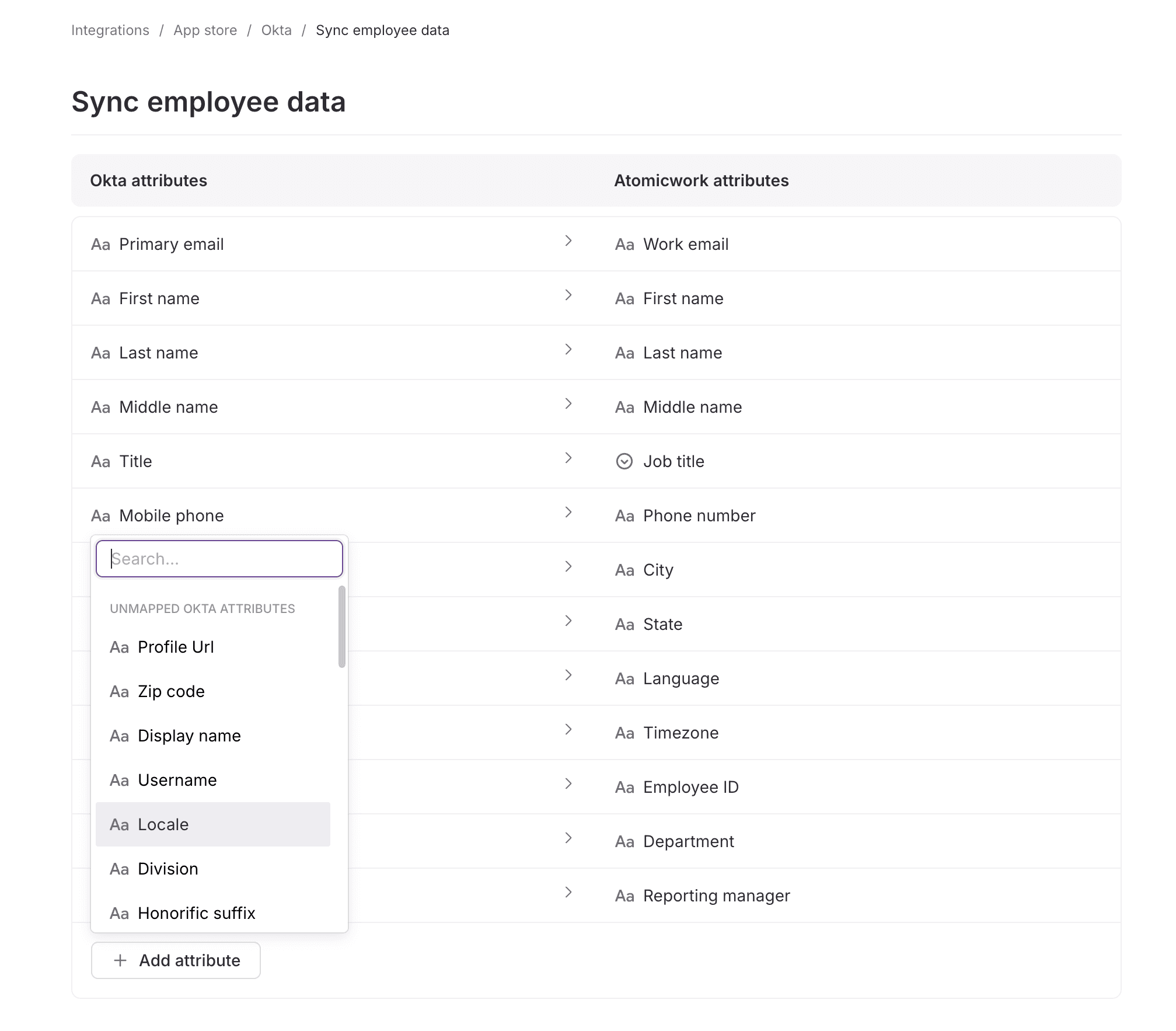
- If this permission isn't granted, you'll need to manually enter the variable name from Okta and select the corresponding Atomicwork attribute to map each custom field you want to sync.
- To find the variable names for your Okta attributes, go to your Okta dashboard > Directory > Profile Editor > Default Profile.
- Copy the variable name for the attribute you want to sync and paste it into the Enter reference key text box.
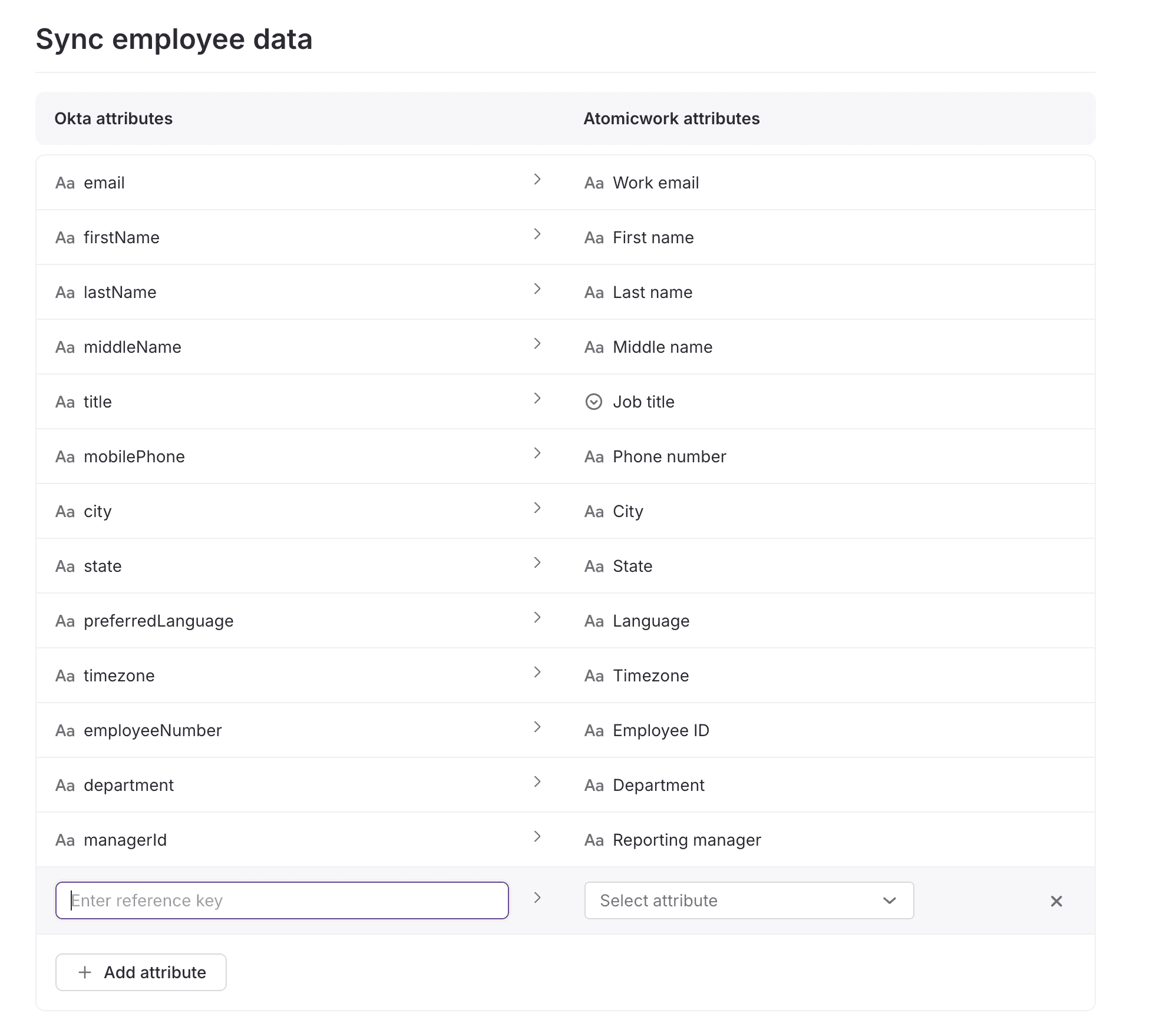
- If the Manage Applications permission is provided during setup, Atomicwork will automatically fetch all available fields from Okta (including custom attributes) and display them for easy mapping.
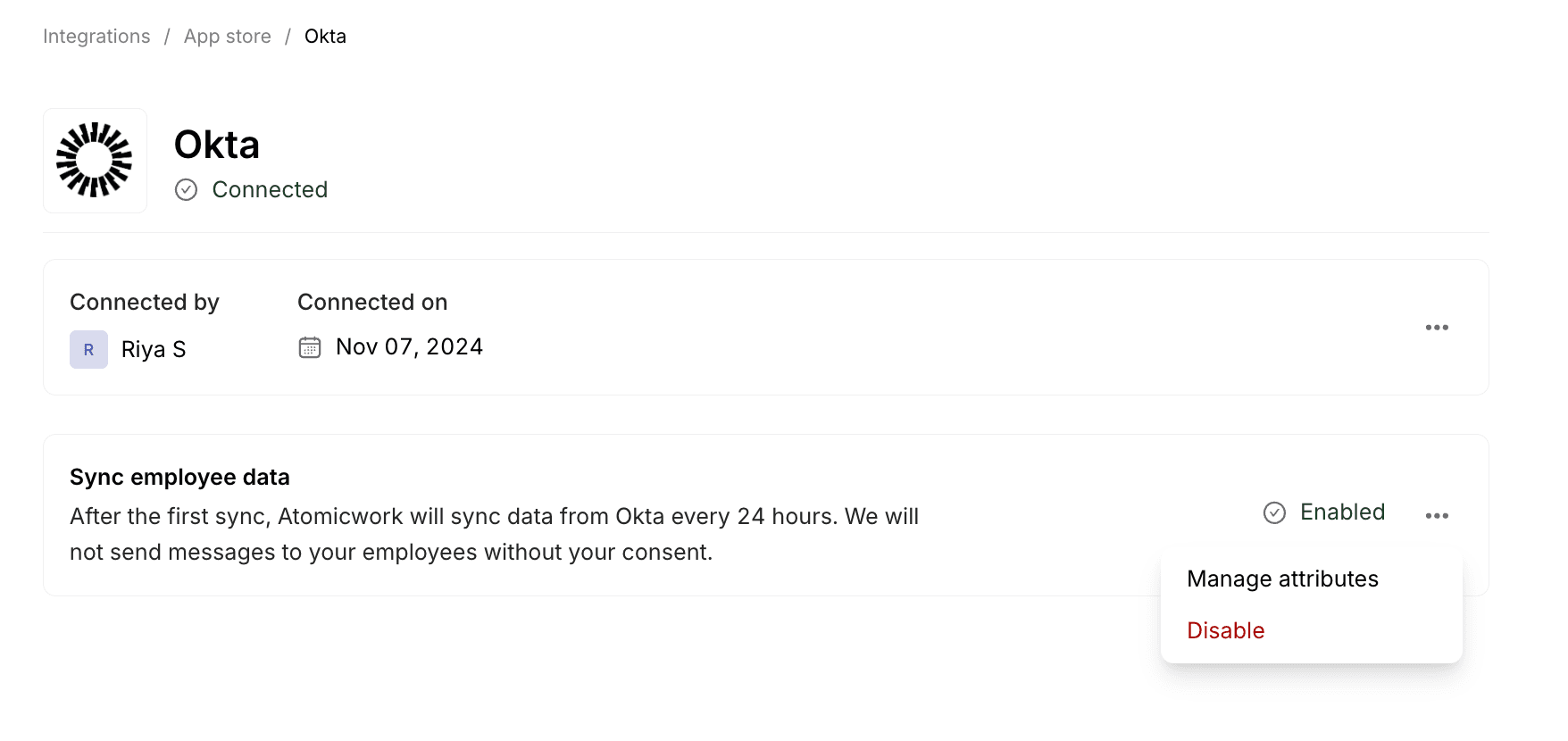
- Click Enable. New users and updates to users will sync every 24 hours.
- To edit the attribute mapping, click Manage attributes in the Okta settings page.
Configure Okta inline hooks
- Log into the Atomicwork portal. Go to Settings > My account > Credential store
- Create a new token and copy it into a safe place
- Go to Okta admin console > Workflow nav item > Event hooks. Click Create Event Hook
- Here's the format for your webhook URL: https://{youraccount}.atomicwork.com/api/v1/users/webhook/OKTA/receive. Give it a recognizable name to make it easy for your team to understand which event hooks are for what purpose.
- Enter X-Api-Key as the Authentication Field under Credentials. Enter the Public API Token you created in step 1 as the Authentication Secret.
- Choose the user events you want to track. When we receive these events - "User deleted", "User suspended", "User deactivated", the user would be deleted on Atomicwork.
- Skip the filter application and preview steps.
- Click Verify. Once verified, Atomicwork will start listening to events from Okta and update user profiles accordingly.
Limitations
| Limitation | Why |
|---|---|
| Group management restrictions. If a group contains super admins, a non-super admin user cannot add members to that group. | Only users with the highest level of access can modify groups containing super admins. |
| Admin modification limitations. A non-super admin user's API token cannot modify any admin account with higher access levels — including adding those admins to a group, editing their properties, or any other modification. | Maintains the security and integrity of high-level administrative roles. |
Okta: Single sign-on (SSO)
Make it easy for your end-users and agents to access Atomicwork by implementing Okta Single Sign-On (SSO). This allows users to sign in using their existing Okta credentials—either by going to your Atomicwork portal or by launching Atomicwork directly from their Okta dashboard.
Supported SSO features
- IdP-initiated SSO
- SP-initiated SSO
- Just-In-Time (JIT) provisioning
For more information on the listed features, see the Okta glossary.
Requirements
The following is needed to configure Atomicwork:
- An Atomicwork tenant with an administrator account
- The Audience URI value from your Atomicwork tenant
Choose your setup method
There are two ways to connect Atomicwork to Okta. Both produce the same result, and everything after the app is created — assigning users, JIT provisioning, and how people sign in — is identical.
- Okta App Catalog (recommended). Install the pre-built Atomicwork integration. Fewer steps and less to get wrong, because the SAML settings are already configured for you.
- Custom SAML app. Build the SAML 2.0 application yourself. Use this if your Okta org restricts App Catalog installs, or if you need to customise the SAML configuration.
Whichever method you choose, continue with Assign users and verify sign-in afterwards.
Set up SSO using the Okta App Catalog (recommended)
-
Sign in to Atomicwork as an administrator.
-
Go to Settings > Enterprise integrations > App store > Okta SSO and click Edit.
-
Copy the Audience URI (SP Entity ID) value shown on that screen, for example
https://accounts.atomicwork.com/realms/8-atomicwork.com. Keep this browser tab open — you will return to it in step 8.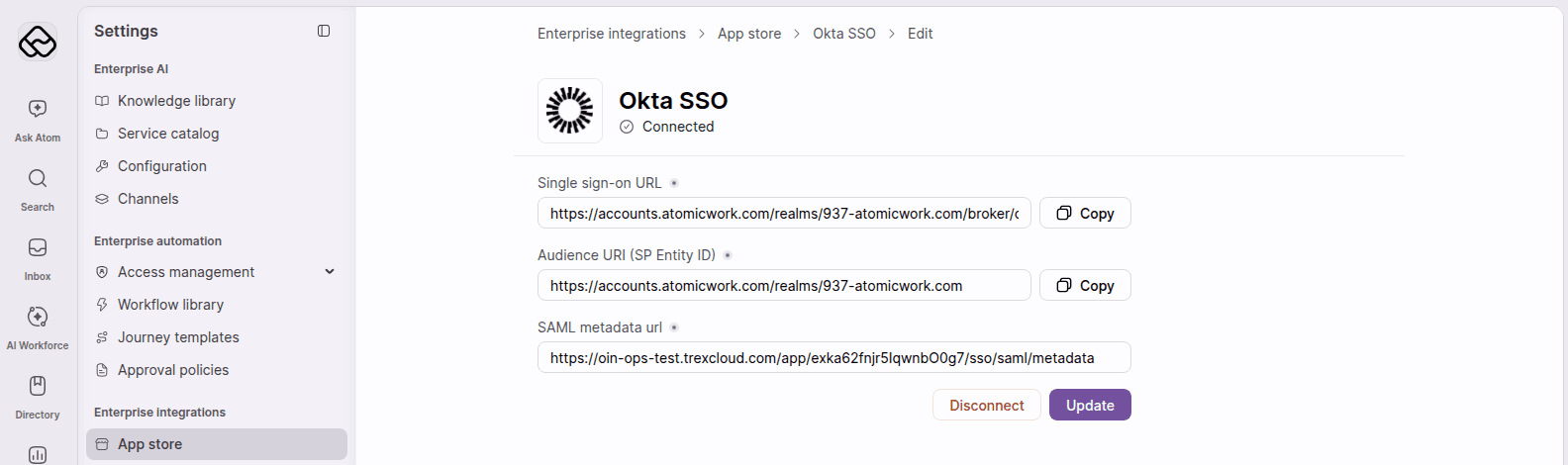
-
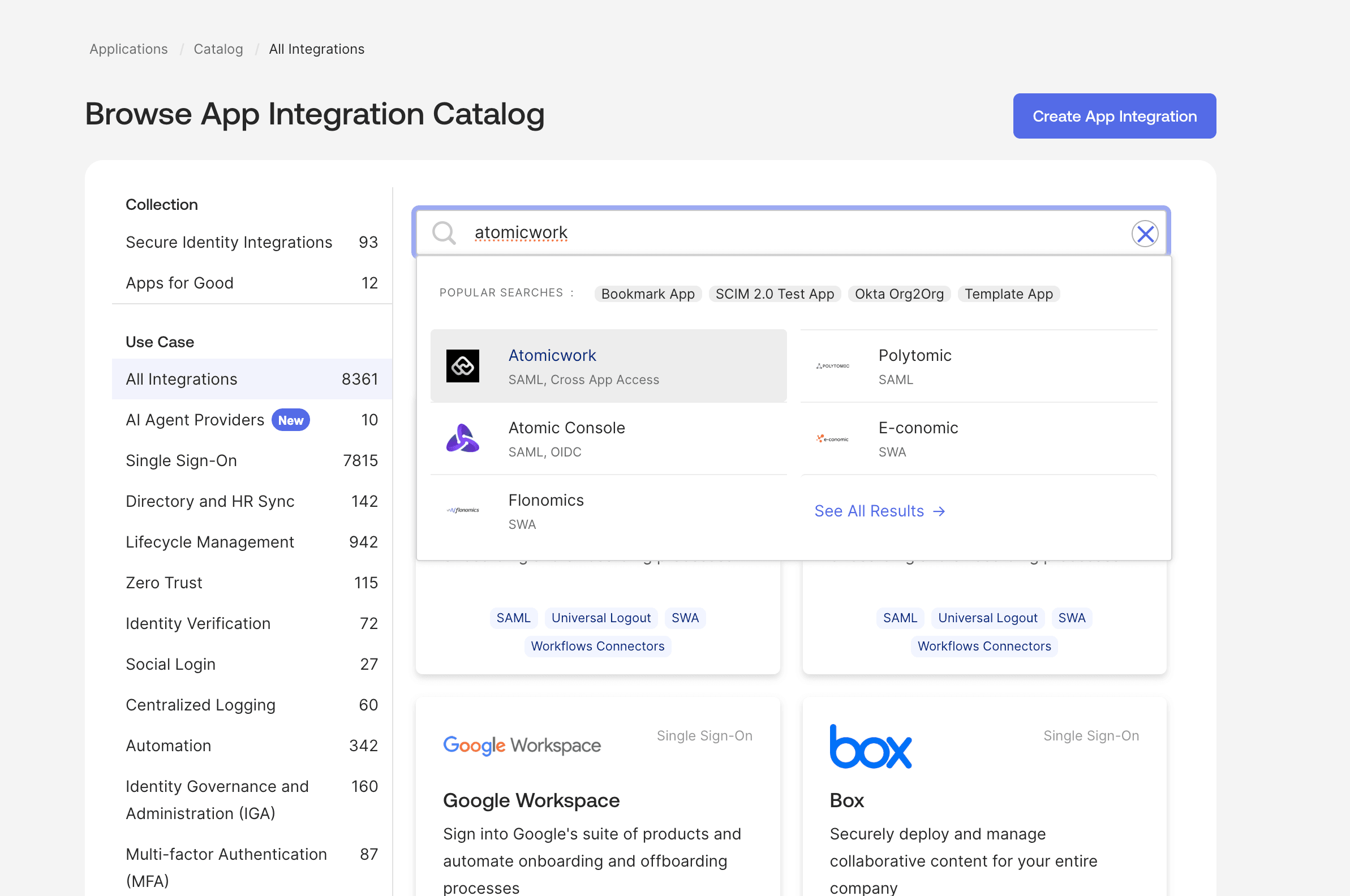
In the Okta Admin Console, go to Applications > Applications and click Browse App Catalog. On the Browse App Integration Catalog screen, search for Atomicwork, select the result, and click Add Integration.
-
On the application's General tab, in App Settings, click Edit and fill in:
- Atomicwork SSO URL — the value you copied in step 3, with the leading
https://removed. For the example above you would enteraccounts.atomicwork.com/realms/8-atomicwork.com. - Subdomain — the subdomain of your Atomicwork URL only. If you sign in at
https://acme.atomicwork.com/, enteracme.
- Atomicwork SSO URL — the value you copied in step 3, with the leading
-
Click Save.
-
Go to the Sign On tab. Under SAML Signing Certificates, click Actions > View IdP metadata for the active certificate and copy the metadata URL from your browser's address bar. It looks like
https://<your-org>.okta.com/app/<appId>/sso/saml/metadata. -
Return to the Atomicwork tab from step 3, paste the metadata URL into the SAML metadata url field, and click Update. The Single sign-on URL and Audience URI (SP Entity ID) fields on this screen are filled in by Atomicwork and are the values Okta needs, so leave them as they are.
Now continue with Assign users and verify sign-in.
Set up SSO using a custom SAML app
Use this method if you cannot install from the App Catalog. You will need the Audience URI described in Requirements.
Step 1: Create the Okta application
-
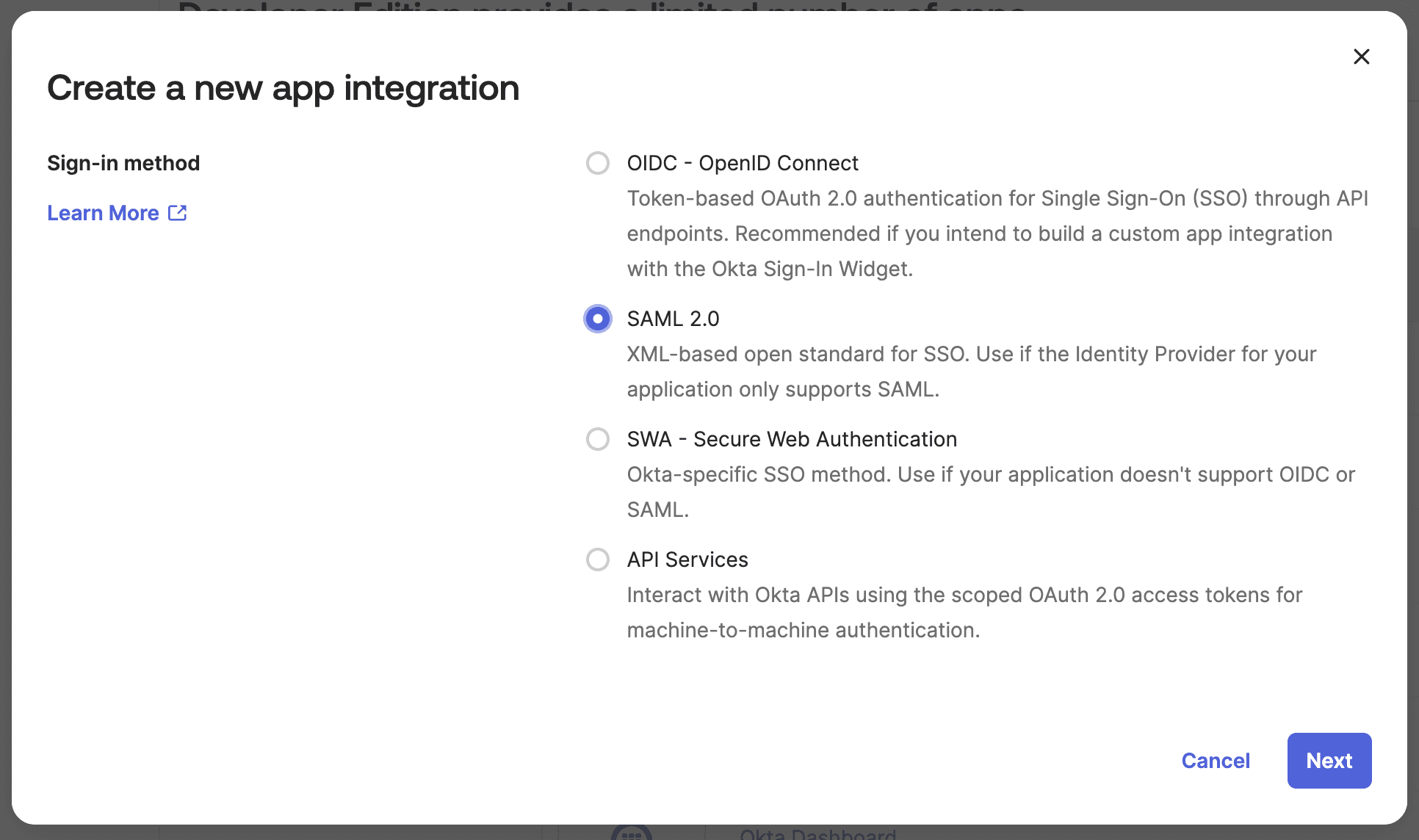
Go to Applications > Create App Integration in your Okta admin portal.
-
Choose SAML 2.0 as your sign-in method.
-
Enter an app name ("Atomicwork" should do). The logo is optional, so feel free to skip uploading the Atomicwork logo.
If you want your users to sign in from their Okta dashboard (IdP-initiated SSO), leave the application icon visible. Only select Do not display application icon to users if you intend users to always start from your Atomicwork URL.
Step 2: Configure SAML settings
-
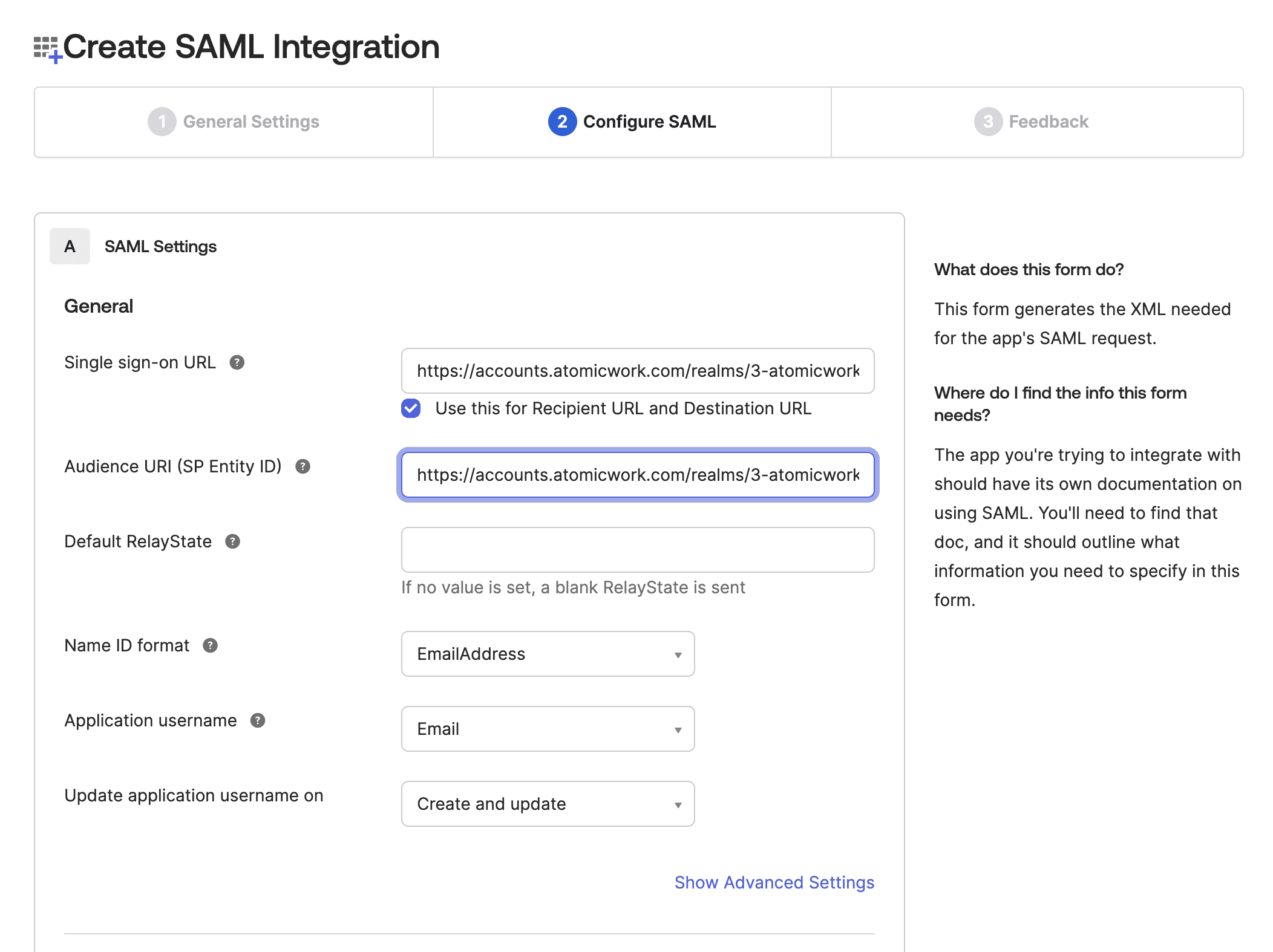
Switch to your Atomicwork account to fetch SAML settings. Go to Settings > Enterprise integrations > App store > Okta SSO and click Edit to find the Single sign-on URL and Audience URI values. Copy these into your Okta app settings.
-
Switch back to the Okta admin portal. Leave Default RelayState blank.
-
Choose Email address for NameID format.
-
Choose Email as Application username, and set Update application username on to Create and update.
-
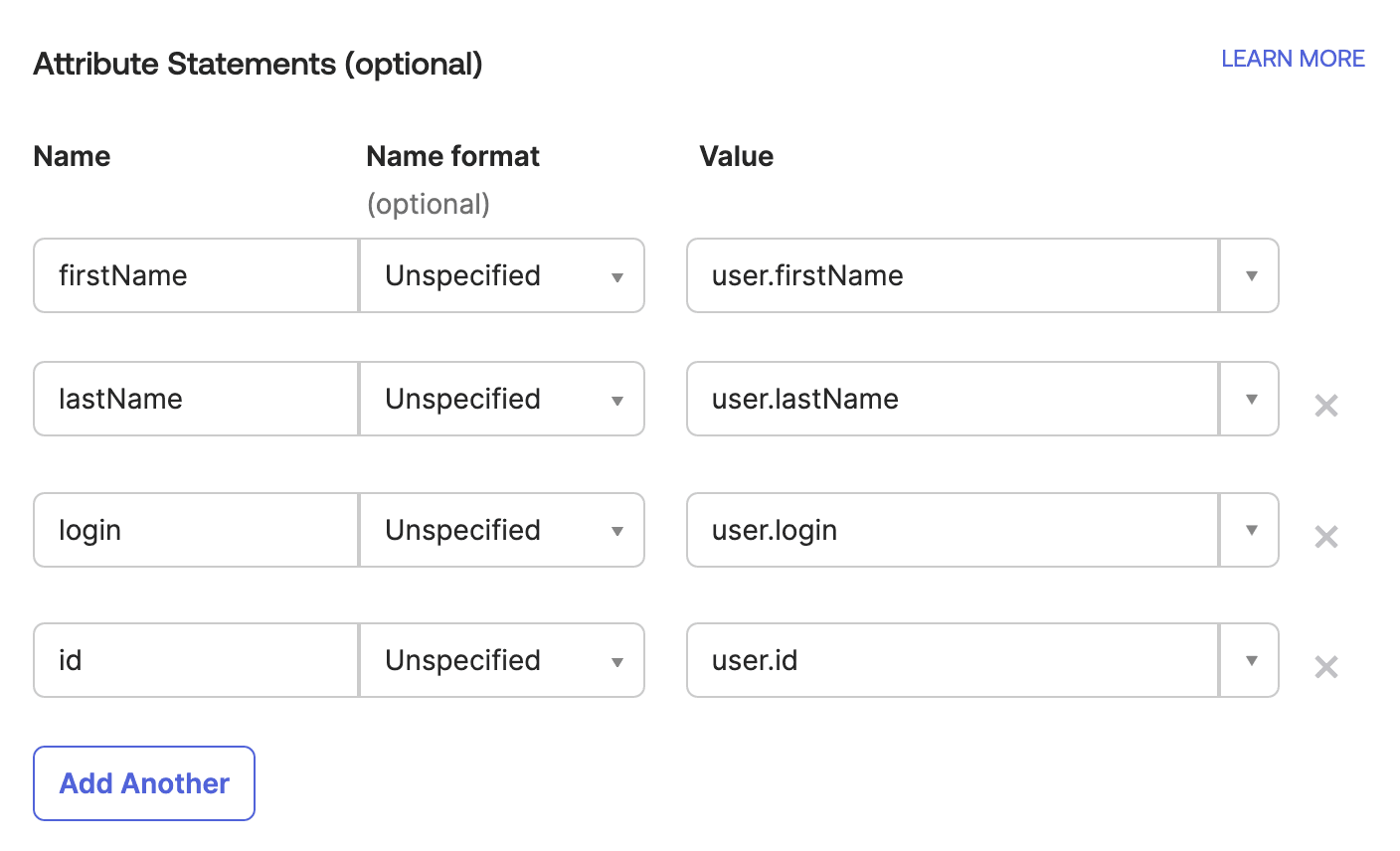
In the Attribute Statements section, add the attributes listed in Attribute statements below.
-
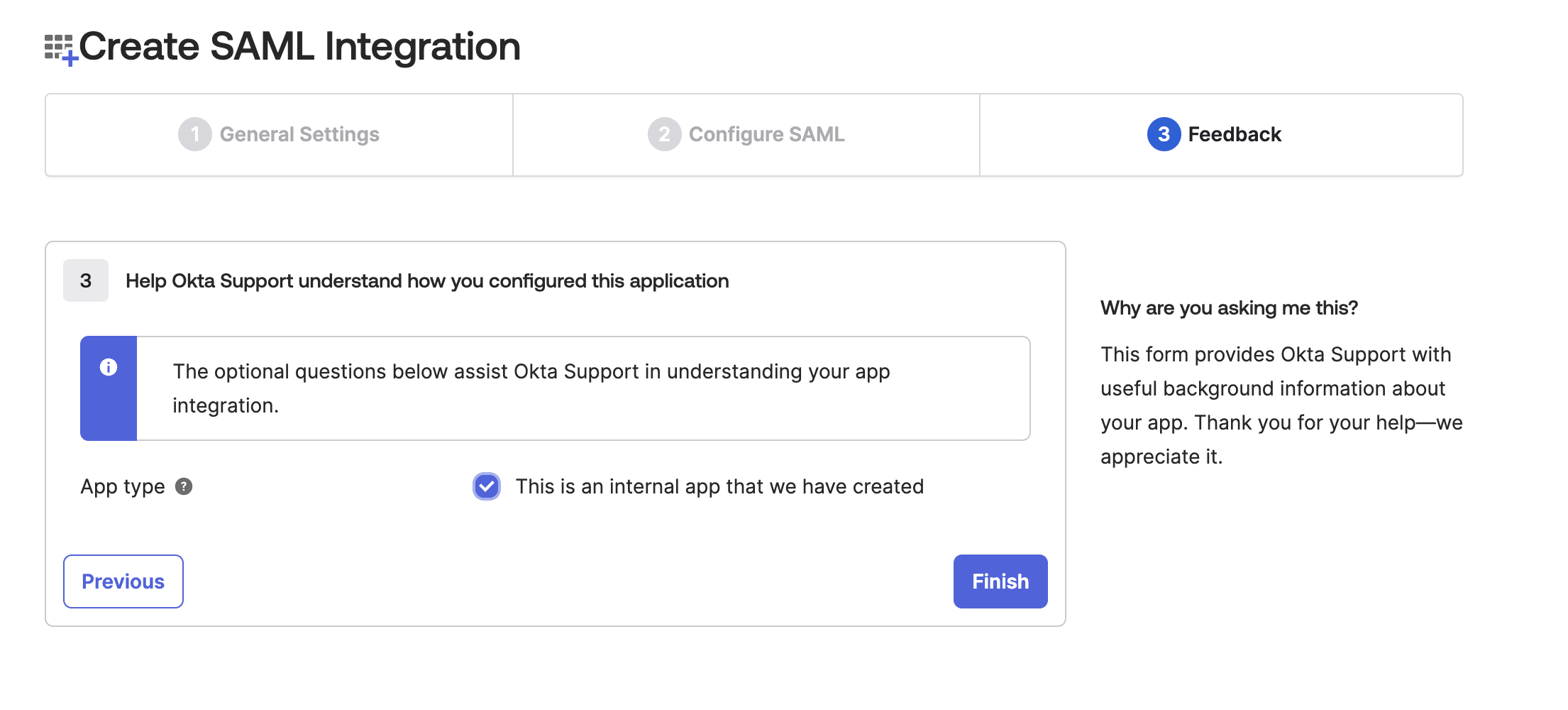
Click Save and mark this as an internal app in the Feedback section.
-
Click Finish, then copy the metadata URL. Paste it into the SAML metadata url field in your Atomicwork account and click Connect.
Now continue with Assign users and verify sign-in.
Assign users and verify sign-in
This applies to both setup methods.
- Assign the Atomicwork application to the Okta users and groups who should have access.
- Sign in to Atomicwork through the Okta dashboard tile to confirm the configuration works. Users who do not yet have an Atomicwork account are created automatically on their first successful sign-in.
Just-in-time provisioning
Atomicwork supports Just-In-Time (JIT) provisioning, and it is on by default. No extra configuration is needed.
The first time an assigned Okta user signs in, Atomicwork creates their account from the SAML assertion, using the NameID as the account identity and the attributes you configured for the profile. On later sign-ins the existing account is matched on the NameID and the profile is refreshed from the assertion, so name and email changes made in Okta follow through automatically.
Two things to be aware of:
- A newly provisioned user has no Atomicwork role until an administrator assigns one.
- Deprovisioning is not automatic. Removing the Okta assignment stops the user signing in, but the Atomicwork account remains until an administrator deactivates it.
How users sign in
Atomicwork supports both sign-in flows, and both use the same endpoint, so neither needs any configuration beyond the steps above.
- SP-initiated. The user opens their Atomicwork URL,
https://<yourSubDomain>.atomicwork.com/, and chooses Continue with Okta on the sign-in screen. Atomicwork redirects to Okta, and after authentication the user lands in Atomicwork. - IdP-initiated. The user clicks the Atomicwork tile on their Okta End-User Dashboard (or in the Okta browser plugin / My Apps). Okta posts the assertion straight to Atomicwork and the user lands in Atomicwork signed in.
In both cases the user must be assigned to the Atomicwork application in Okta.
Notes
- Attribute statements. In the Attribute Statements section of the Okta application, add:
- firstName
- lastName
- login
- id
- NameID format. Atomicwork expects the NameID to be the user's email address. Changing a user's email in Okta changes their Atomicwork identity, so that user has to sign in again to be re-linked.
- Signed assertions. Atomicwork validates the assertion signature against the certificate in the metadata you supplied during setup. If you rotate the signing certificate in Okta, supply the new metadata URL to Atomicwork again so it picks up the new key.
- Single Logout. Atomicwork does not support SAML Single Logout. Signing out of Atomicwork ends the Atomicwork session only.
- Cross-App Access. If you also use Atomicwork with an AI agent such as Claude, Cross-App Access is configured separately on this application after SSO is working. Contact support@atomicwork.com for the setup guide.
Troubleshooting
| Symptom | Cause | Resolution |
|---|---|---|
| "Invalid metadata url" when saving the metadata URL | The metadata URL is not reachable without authentication, or it does not return SAML metadata. | Open the metadata URL in a private browser window and confirm it returns XML. Re-copy it from Sign On > SAML Signing Certificates > Actions > View IdP metadata in Okta, then paste it again in Atomicwork. |
| The Okta tile returns an error from Atomicwork | The Atomicwork SSO URL entered in Okta does not match the Audience URI in your tenant. | Confirm the two match exactly, with no https:// prefix and no trailing slash. Copy the Audience URI (SP Entity ID) again from Atomicwork if unsure. |
| The user signs in but lands on a permissions error | The account was created by just-in-time provisioning and has no Atomicwork role yet. | An Atomicwork administrator assigns the role in Settings > Users. |
| A user removed from Okta can still be seen in Atomicwork | Deprovisioning is not automatic. Removing the Okta assignment stops the user signing in, but does not remove the Atomicwork account. | An Atomicwork administrator deactivates the account in Settings > Users. |