
Journey Actions by App
Okta: Workflow and journey actions
Automate Okta user and group operations, such as creating, suspending and deactivating users, from Atomicwork workflows and journeys.
When you integrate Atomicwork with identity access platforms like Okta, Azure AD, and Google Workspace, you can perform automated actions like creating a user, adding a user to a group, suspending a user, and deactivating a user.
When configuring an onboarding or offboarding journey (or even a team change journey), you can use these automated actions to automatically perform these operations instead of having to note it down on your to-do list and manually log into these platforms to perform these operations every single time.
To add Okta actions to a journey or a workflow, you must connect Atomicwork to Okta.
Anything defined in the Okta API can be accessed through Atomicwork.
Add Okta actions to workflows
A workflow is triggered by an event in a request. Workflow trigger events can be service request, request, incident events (such as "incident is created" or "a reply is sent in an incident"), System events, or System or any person events. Okta actions are one type of many actions available to an IT admin to configure.
- Go to Settings > Enterprise automation > Workflow library. Select Organization to apply this across the organization, or select a workspace to apply it to that workspace only. Create a workflow or click the workflow to which you want to add actions.
- Click Add action, then select Okta actions.
Add Okta actions to journeys
Journeys can be triggered by an agent, scheduled for a certain day or triggered by certain API events like BambooHR profile creation.
- Go to Settings > Enterprise automation > Journey templates. Click the journey to which you want to add an action or create a new one from scratch.
- In the stage, select Okta actions.
In journeys, Okta actions are automated actions that Atomicwork executes directly, so you don't assign them to an HR or IT manager. For every Okta action in a journey:
- Specify when it runs. Your two options are the day the employee moves to the stage or a day relative to the day an employee moves to this stage.
- Give it a clear name so your teammates know why you've set it up. Okta actions are visible to journey collaborators but not to employees who have been assigned this journey.
List of Okta actions
- Create a user account
- Add a user to a group
- Remove a user from a group
- Suspend a user account
- Deactivate a user account
In every action, you can enter values directly, insert data from the request (or the service, if it's a service request), or use a data pill from an earlier action.
Create an Okta user
Tip: This action is most useful in onboarding workflows and journeys.
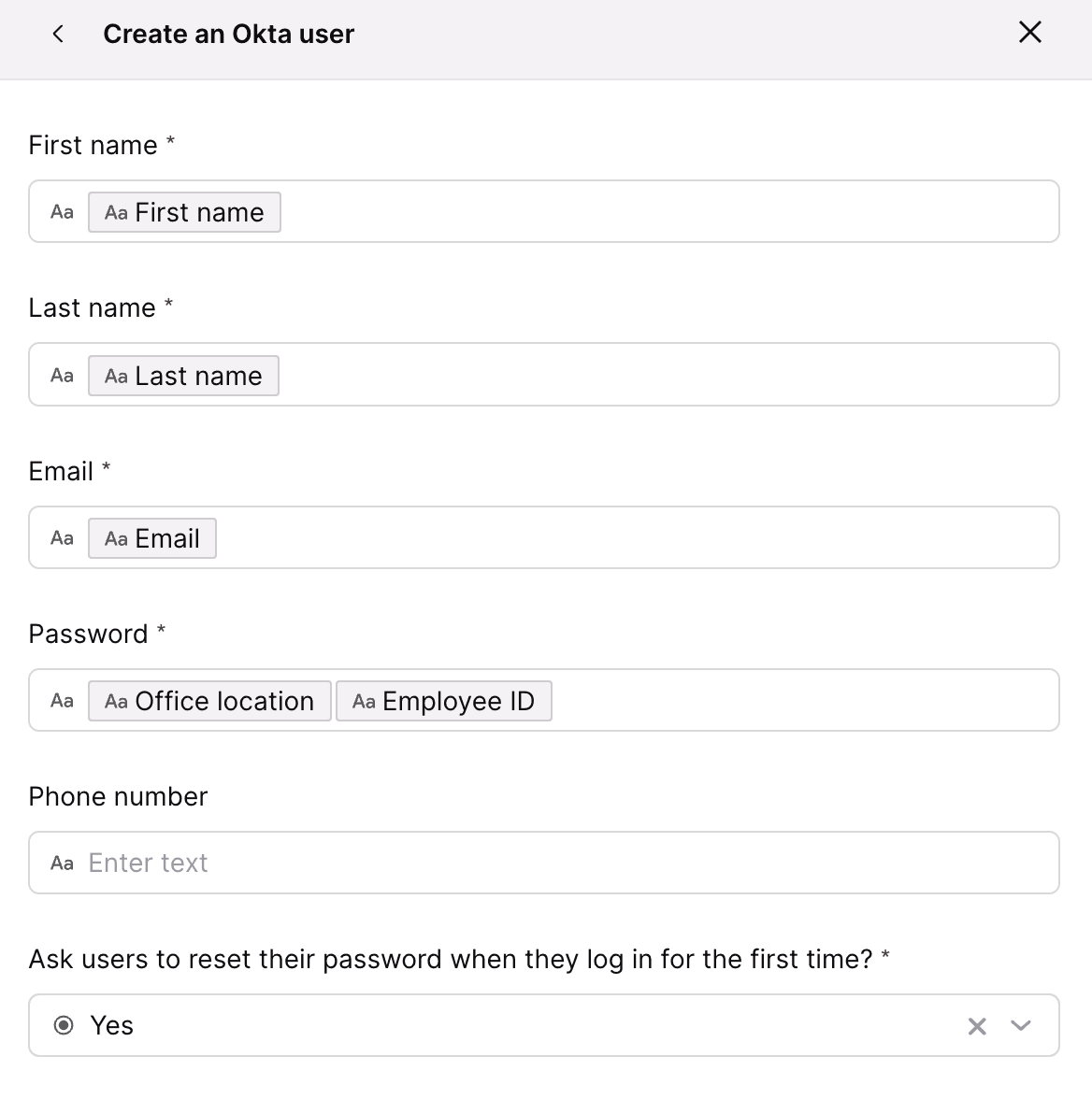
- Enter the employee's first name, last name, email and password. Phone number is optional. We'd recommend you use dynamic placeholders from the request or service. For example, if it's firstname.lastname@yourcompany.com, you could add {{employee.first_name}}.{{employee.last_name}}@yourcompany.com in the email field.
- Password strength. The password can be a temporary one. Even so, it's crucial to follow information security best practices. Use dynamic placeholders to create a unique, strong password for new employees.
- Choose whether to ask users to reset their password when they log in for the first time. We'd strongly recommend it.
- Click Add/Done to add the action to your journey or workflow.
Add an Okta user to a group
Tip: This action is most useful in onboarding journeys and can only be executed for existing Okta users. So, please make sure to create a new employee as an Okta user first before adding this action.
- Choose which Okta user needs to be added to a group.
- Choose the Okta group you want to add the user to. You can perform this action for only one group at a time. You can't create an Okta group from Atomicwork, so please make sure to create the group on the Okta console before you set up this action.
- Click Add/Done to add the action to your journey or workflow.
Remove an Okta user from a group
Tip: This action is most useful in offboarding journeys.
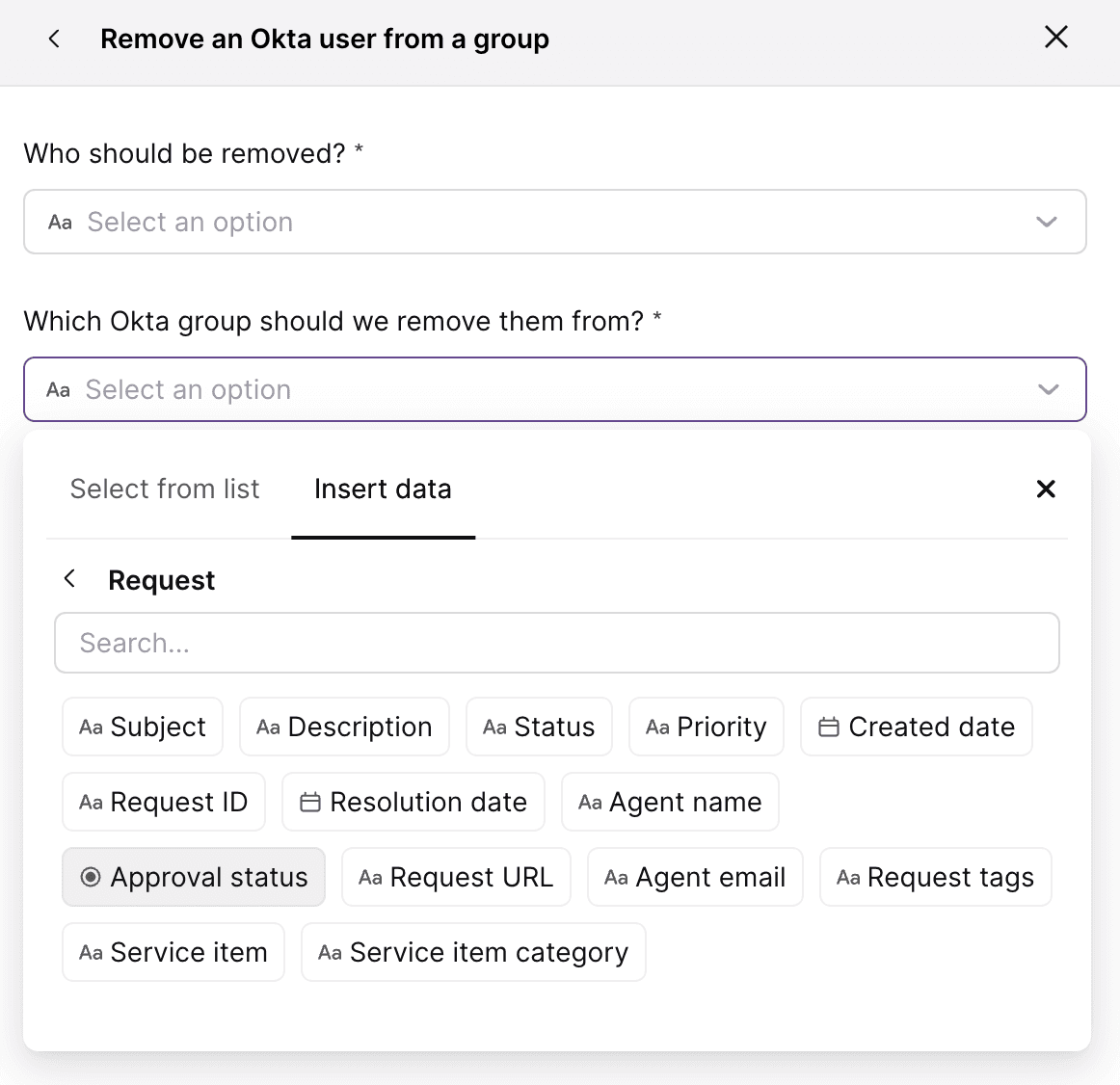
- Choose the Okta user account and the group from which they need to be removed. You can perform this action for only one group at a time.
- Click Add/Done to add the action to your journey or workflow.
Suspend an Okta user
Tip: Suspending people in your organization is useful if you have temporary and contract workers or when your employees are on leaves of absence. You may also want to suspend a user who has permanently left your organization so that you can review their group and app assignments before deactivating them. Suspended users' app and group memberships are maintained and are reinstated when the user is unsuspended.
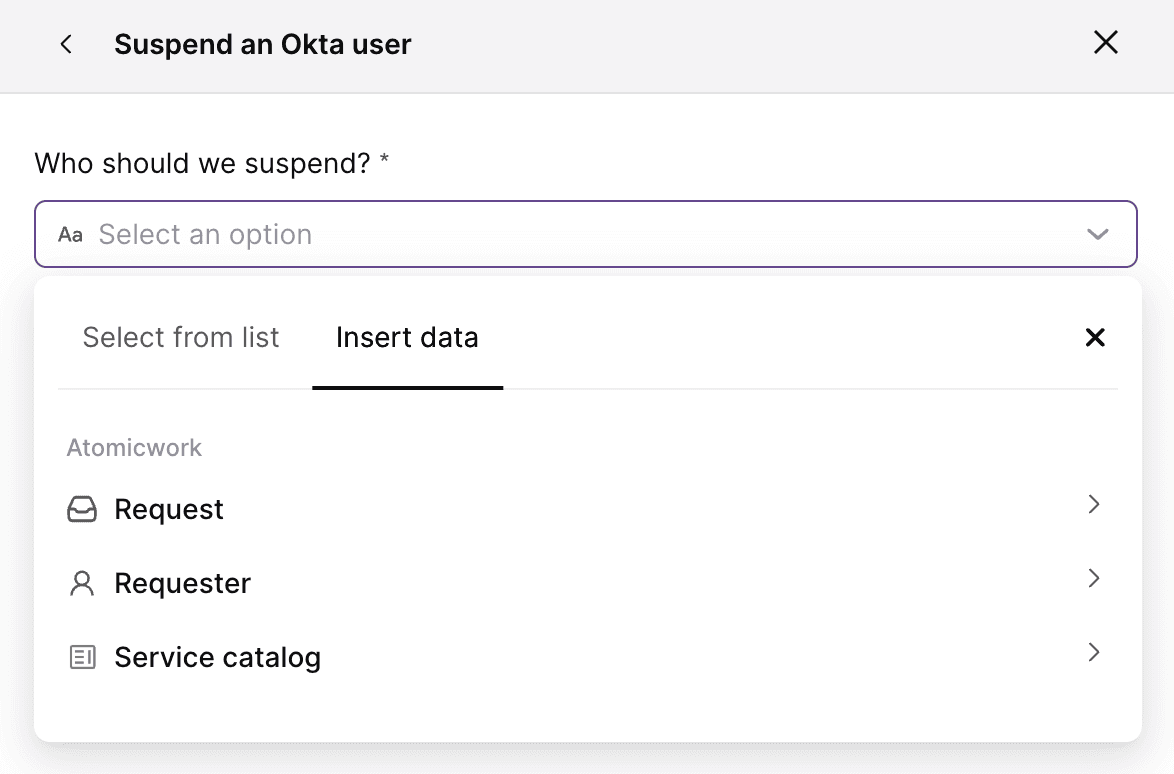
- Choose the Okta user whose account needs to be suspended.
- Click Add/Done to add the action to your journey or workflow.
Deactivate an Okta account
Tip: Deactivated users will not have access to any apps and may need to be reassigned apps when reactivated. However, deactivated users will not be removed from groups until they are deleted. Users can be deleted only on the Okta app and not Atomicwork.
- Choose the Okta user whose account needs to be deactivated.
- Click Add/Done to add the action to your journey or workflow.